

When we first brought AI to Script 360, it could write you some loglines and break down your story. It can do a great deal more now. It can proofread your script, give you coverage, write your synopsis and a pitch, sketch your characters and the places they live in, picture your key scenes, and even design a one sheet for your script.
That is a lot to take in, so here is a guide to using it: what to do first, what to do next, and why the order makes a difference. Nothing here is required. You can use one feature or all of them, in any order you like. But if you are not sure where to begin, begin here.
Everything starts from the AI Extras panel on your script’s page.

Before you start: how the credits work
Each AI feature costs a few credits, and every member gets free credits every month: 40 for Free members, 55 for Basic and 90 for Pro. They arrive the first time you sign in each month, and they are used before any credits you have bought, so what you paid for is the last thing to go.
A few things worth knowing:
- You always see the price first. Every button opens a box with the exact number of credits before anything happens.
- Nothing is thrown away. Every result is saved with your script, so you can come back to it any time, and you are never charged twice for the same answer.
- Some features are cheaper once others are done. That is the main reason the order below matters.
- Your screenplay is never used to train anybody’s AI. How we use AI explains it all.
If you run low, you can buy more under AI Credits in the menu under your avatar, and Basic and Pro members pay less for them.
Step 1: Proofread your script
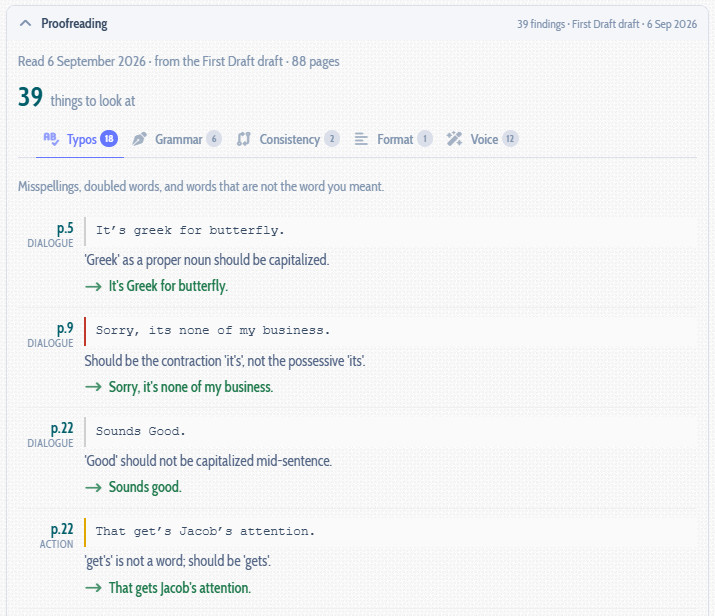
Start with the cleanup. Proofreading reads every page and finds the typos, the grammar slips, the names spelled two different ways and the formatting that is off, each one with its page number. It also suggests where an action line could be tighter.
Why first? Because everything else reads your script too. Coverage, a reader, a producer: none of them should be tripping over a typo on page 3. Fix what it finds, and you go into everything else with your best draft.
It takes a few minutes and costs about 30 credits for a 100-page feature. You can also open the findings in the editor’s sidebar and fix them as you go.
Step 2: Break down your story
This is the big one. The Story Breakdown reads your whole screenplay and lays out what it found: the genre and tone, the central conflict, what your hero wants and what they really need, the stakes, the act turns and the pages they land on, the themes, the key scenes, and anything it could not quite pin down.
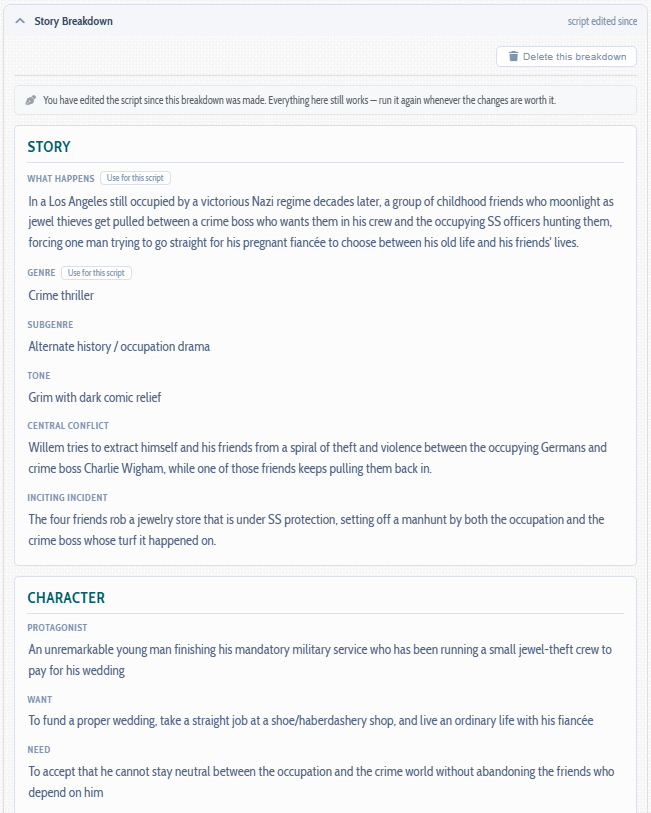
It is worth doing early, because so much else is built on it:
- It writes up your main characters on the Characters tab, with what they look like, so they are ready to sketch.
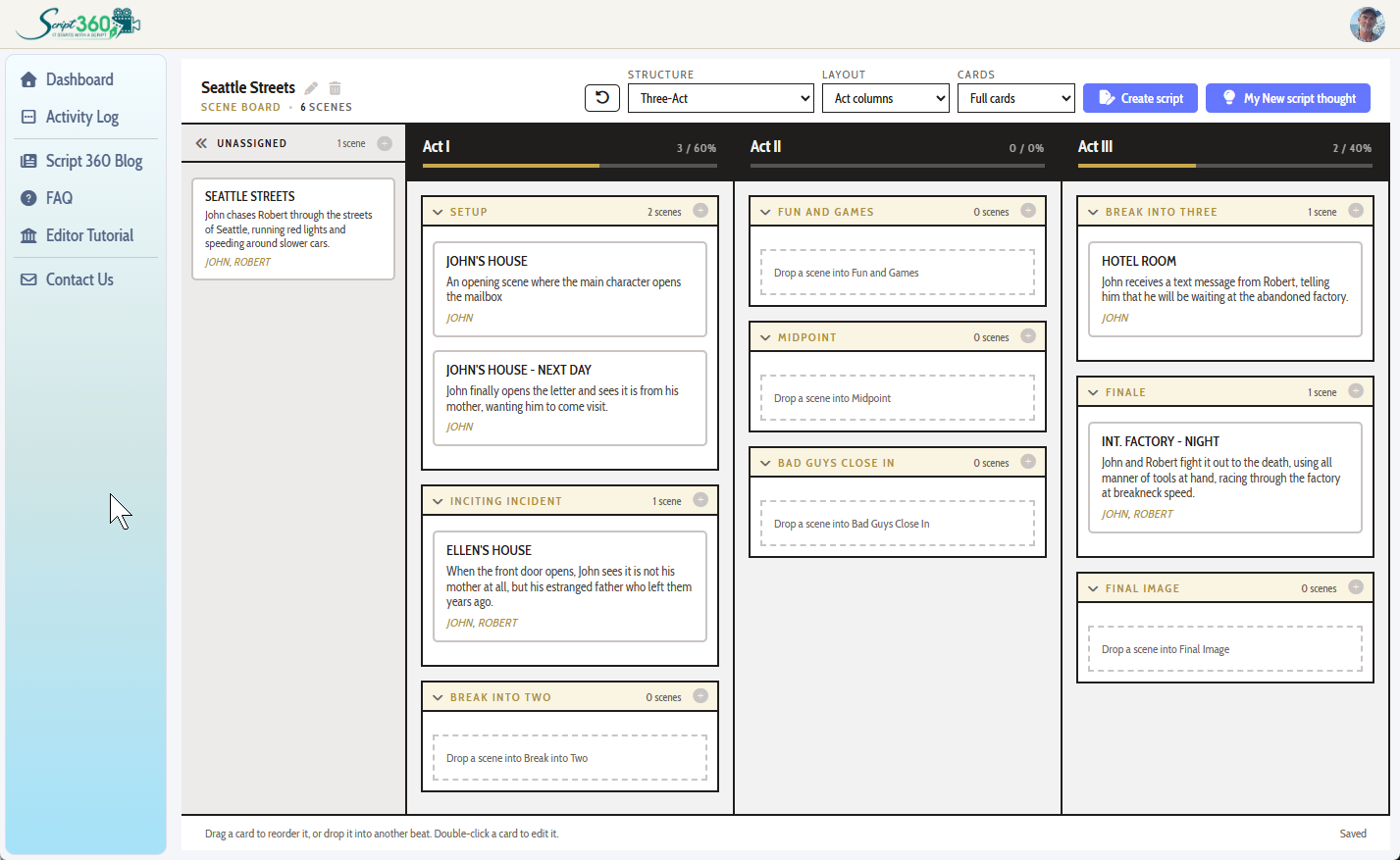
- It can lay out your Scene Board at the same time, placing every scene into the structure you choose.
- It can find your locations at the same time too.
- Your loglines, synopsis, pitch and one sheet all come from it, and most of them cost far less once it exists.
A breakdown costs about 26 credits for a 100-page feature, and the extras you tick are added to the price before you confirm.
Step 3: Get an honest read with AI Coverage
Now that your script is clean, ask the question every writer wants answered: how good is it? AI Coverage reads the whole screenplay the way a studio reader would. It scores nine things out of ten, from premise and structure to dialogue and marketability, quotes your own pages to show what it means, and ends with a Pass, Consider or Recommend.
It is honest, sometimes bluntly so. Read it as notes from a reader who has no reason to flatter you, and take what is useful. Coverage costs about 40 credits for a 100-page feature.
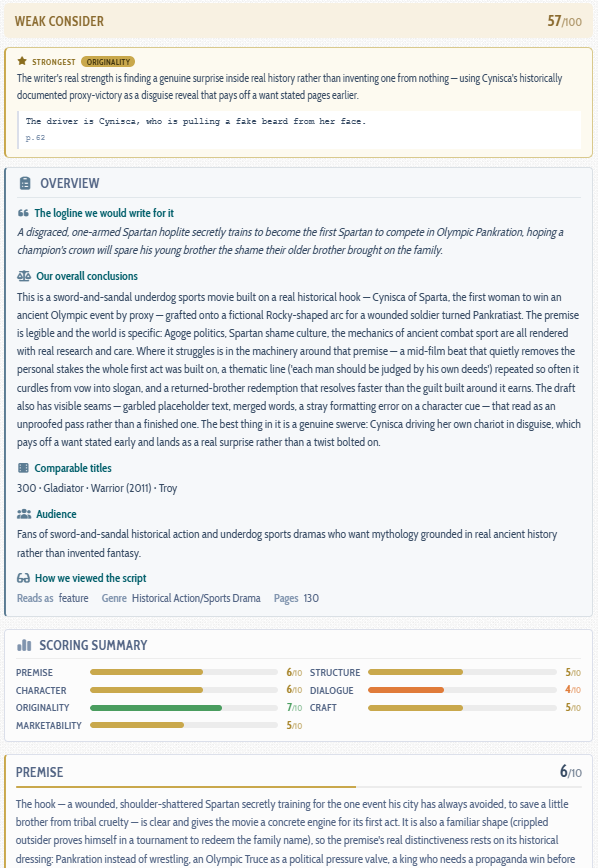
Want a human reader too? Our Analyst Coverage is written by a professional reader, and it is a good idea to proofread and run AI Coverage first, so you are paying them to read your strongest draft.
Step 4: Write the words that sell it
With the breakdown done, the writing that goes around your script is quick and cheap:
- Loglines. Generate three, each from a different angle, with the thinking behind every one. Tell it which ones worked and why, and refine them into another set. About 5 credits.
- Logline critique. Already have a logline? Ask whether it would earn your script a read. It rebuilds your own sentence and offers a bolder version. About 2 credits.
- Synopsis. A full page and a half page in one go, ready to paste into a submission. About 5 credits from the breakdown.
- Pitch. A short sales piece that leads with your hook and never gives away the ending, for when somebody asks “so what is it about?” About 4 credits.
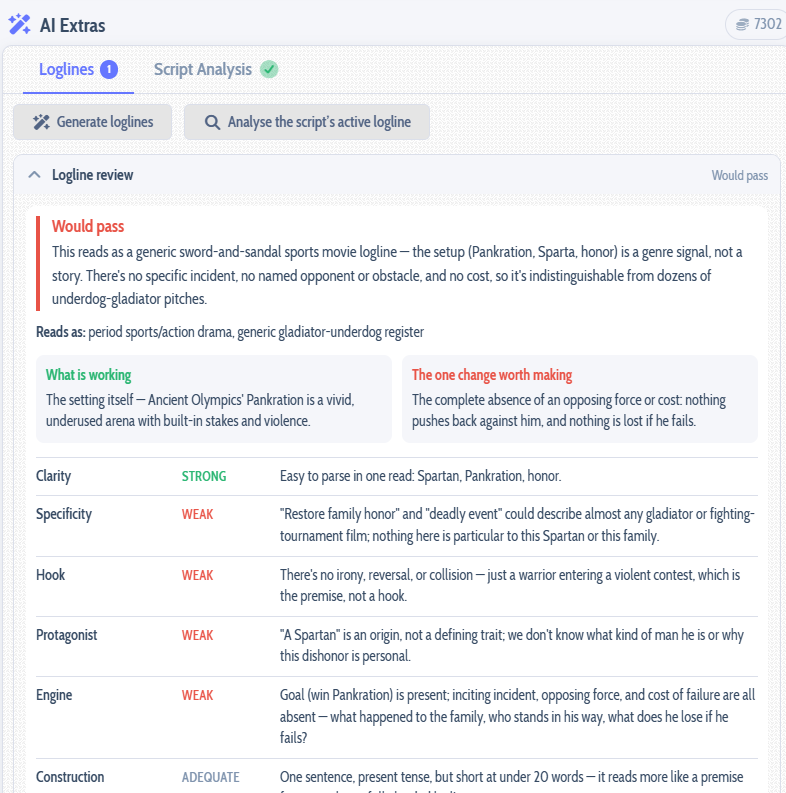
Like a logline or a synopsis? Press Use and it becomes your script’s own, in place of the one it had.
Step 5: Meet your characters
Here is where it gets fun. Open the Characters tab, where the breakdown has already written up your main cast, and give them faces. Open a character and press Sketch, choose a style from pencil to oil painting to comic book, and pick the one you like best. Each picture is about 4 credits.
Want the whole cast at once? Quick sketch the characters draws everybody in one go, and costs 10% less when you sketch two or more.
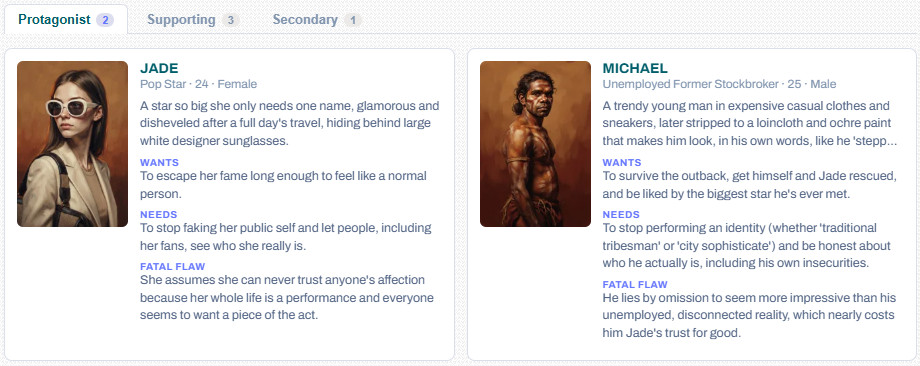
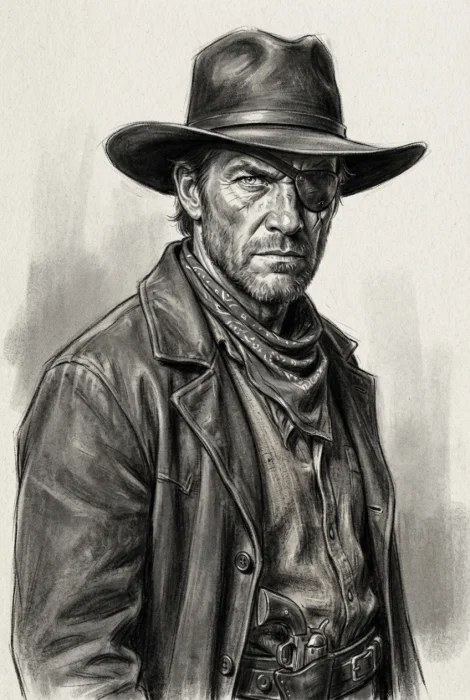

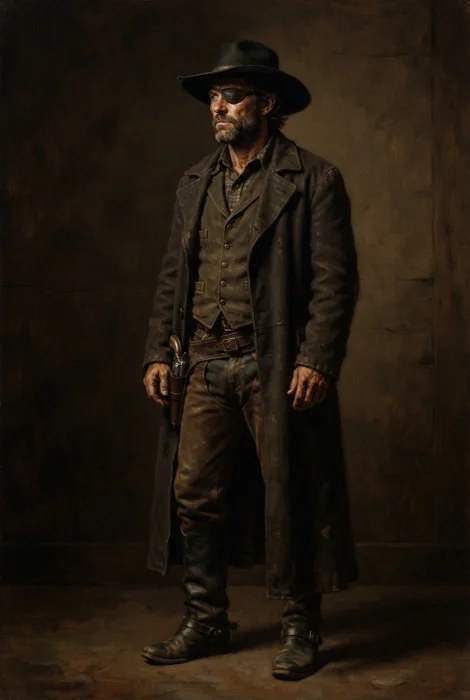
Not quite right? Redraw any AI sketch in another style, from another camera angle, or with your own changes (“make her older”, “give him a beard”), for the same price as the first one.
Sketch your leads at this point, because the next two steps use their faces.
Step 6: See your locations
On the Locations tab, Find the major locations reads your scene headings and writes up the places your story spends its time, with how each one looks and feels. If you ticked it during the breakdown, this is already done.
Then sketch them, one at a time or all together with Quick sketch the locations.
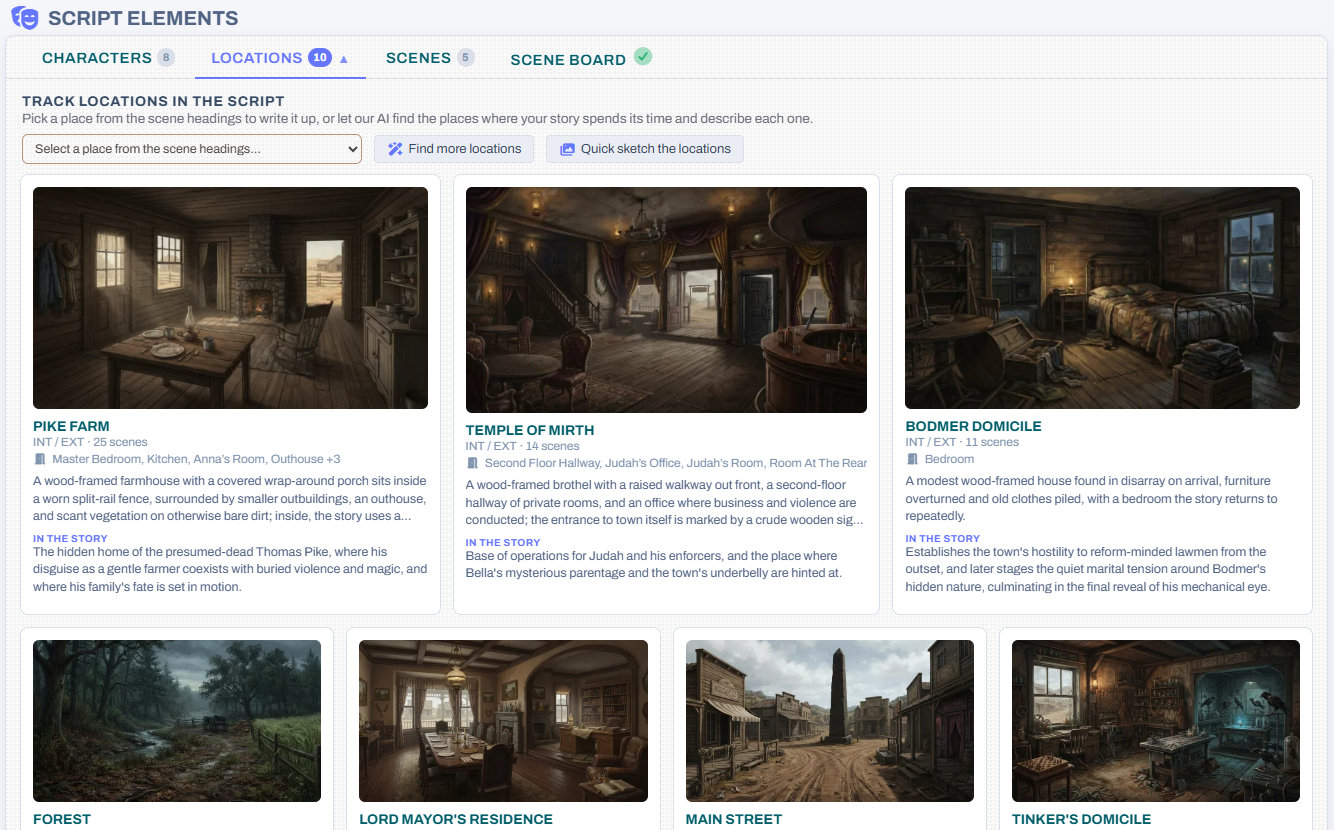
Bring every room to life with sublocations
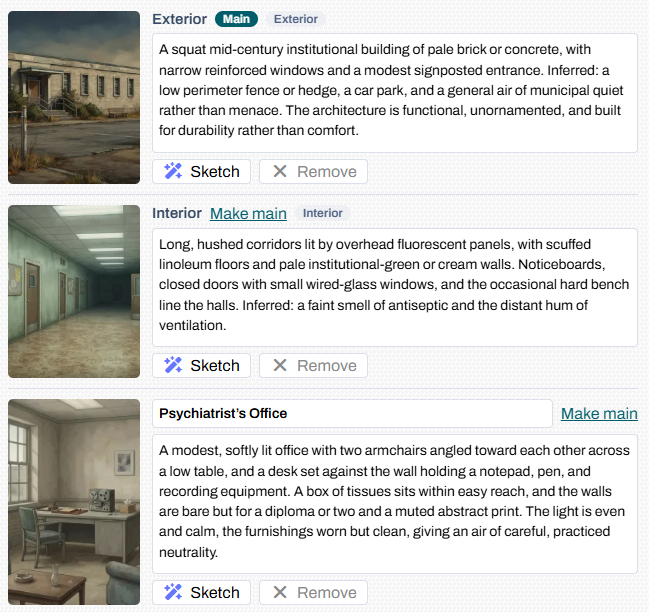
A location is rarely just one place. A house has its front porch, its kitchen and the bedroom upstairs. A hospital has its entrance, its long corridors and the doctor’s office at the end of one. With sublocations, you can bring each of those rooms and places to life on its own, so that every scene set inside a location can be pictured with great precision, in the very room where it happens.
Press Add sublocation descriptions and the AI sets up each location’s views from your scene headings: the outside, the inside, and every room your scenes name, like BOB’S HOUSE - KITCHEN. It describes what a camera would see in each one, drawn from the scenes you set there, usually for about a credit a location. Then sketch any view on its own, and it still looks like the same place.
Step 7: Picture your key scenes
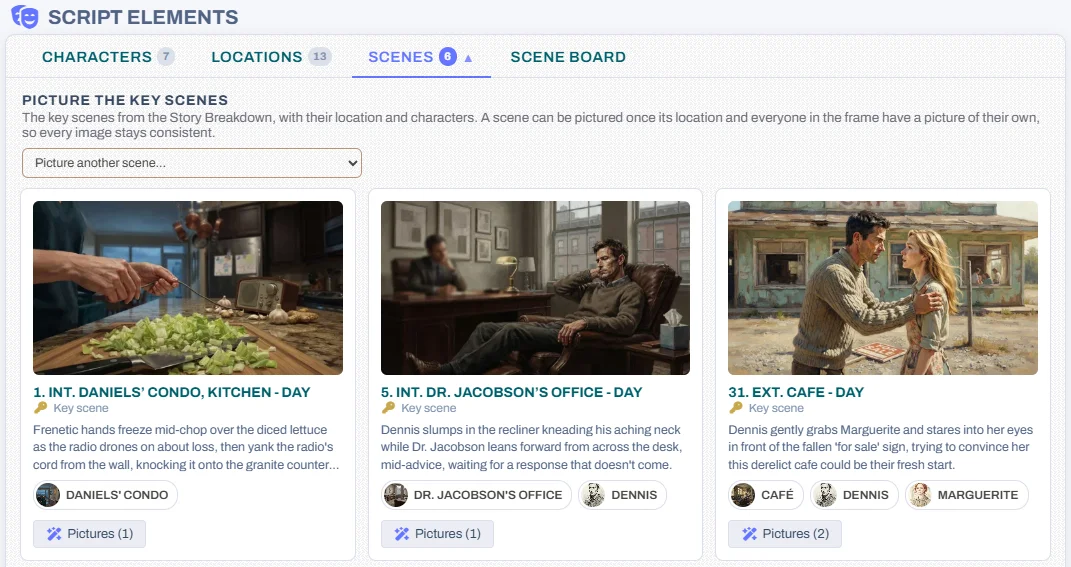
With your characters and locations sketched, you can picture a scene. Open the Scenes tab, choose a scene and press Picture this scene. It suggests the moment to show and who is in it, and you can change either before it draws. Each picture is about 5 credits.
A scene picture uses the sketches you already have, so your characters look like themselves and the barn looks like your barn. That is why a scene can only be pictured once its location and everybody in the shot has a picture, and the box tells you who is missing and gives you a shortcut to sketch them.
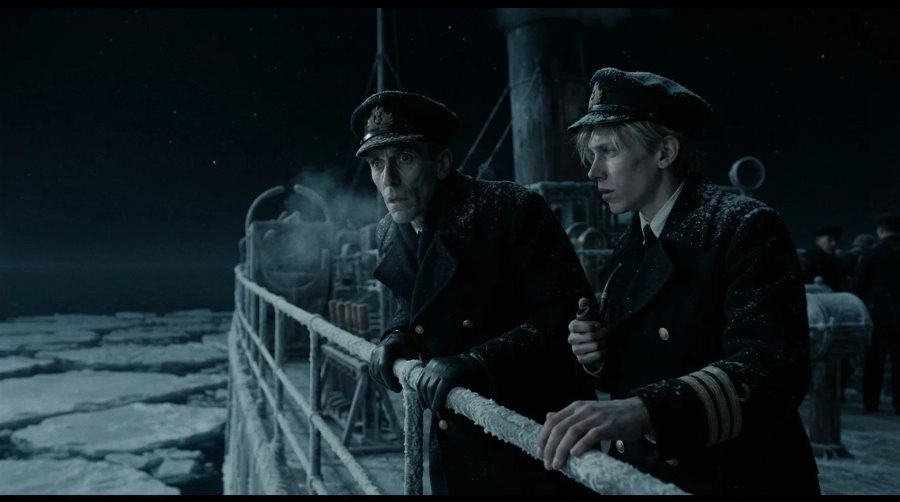

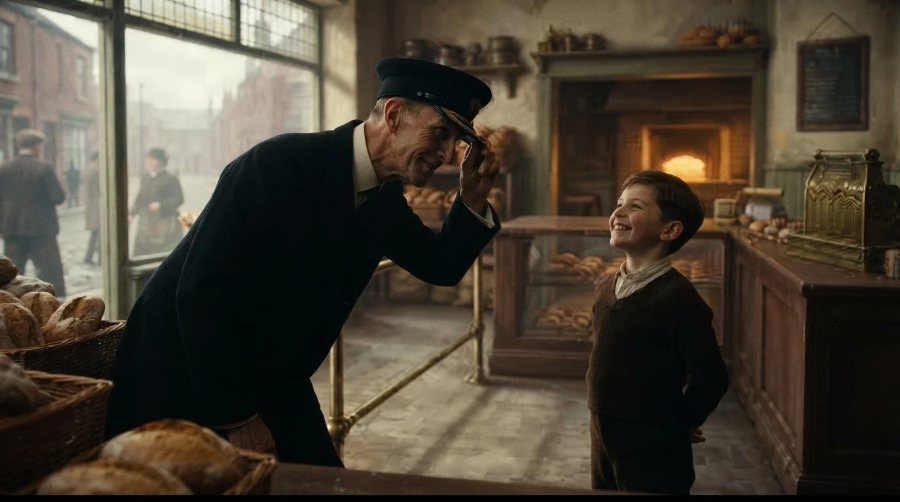
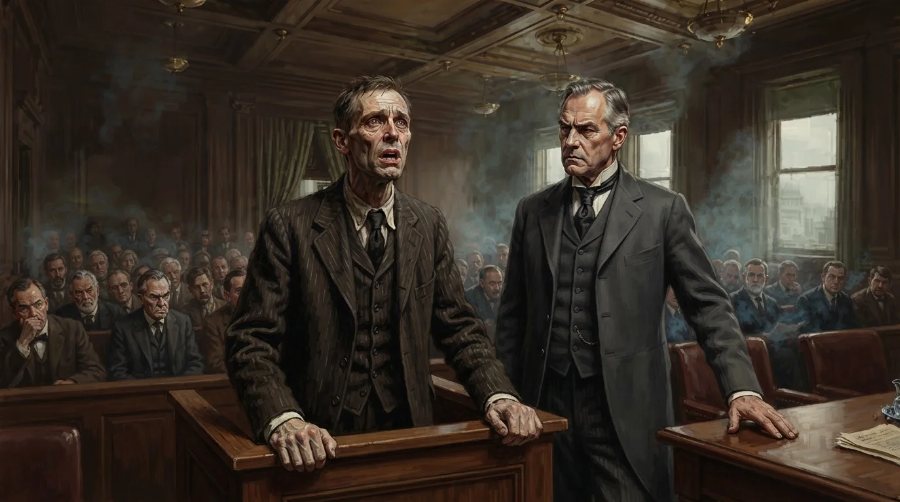
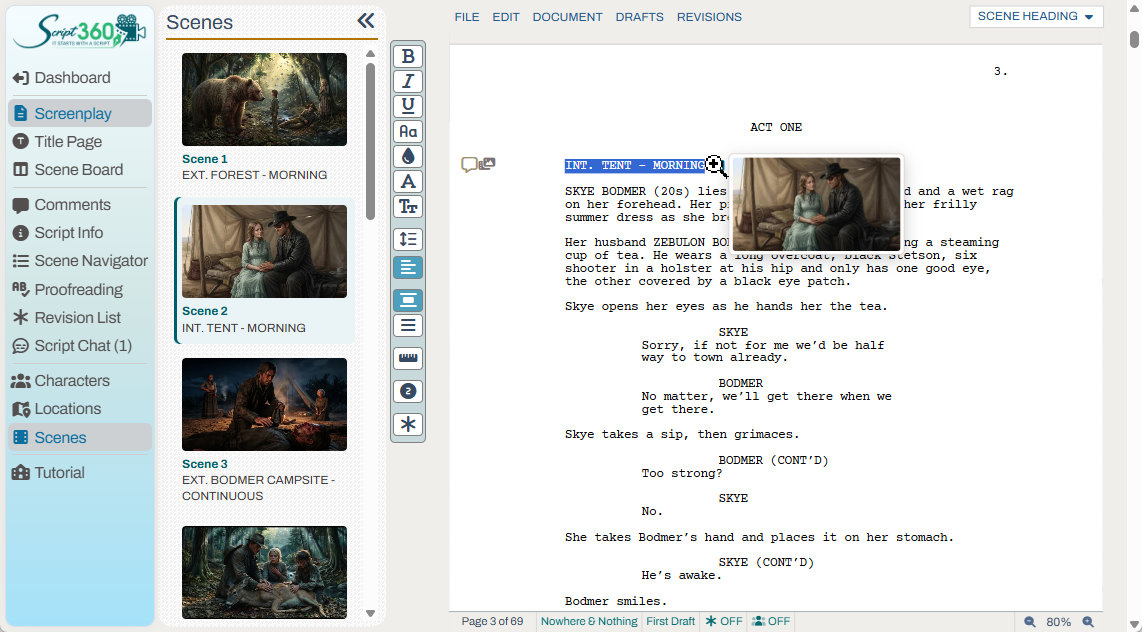
And once a scene has its picture, it is part of your script for everyone who reads it. Anybody who opens the script, whether a co-writer, a reader you have invited or a member who found it in the Script Library, sees a Scenes list beside the pages with every pictured scene in order, and a small picture icon beside the scene heading that shows the picture when they point at it. There is nothing extra to turn on.
Step 8: Design your one sheet
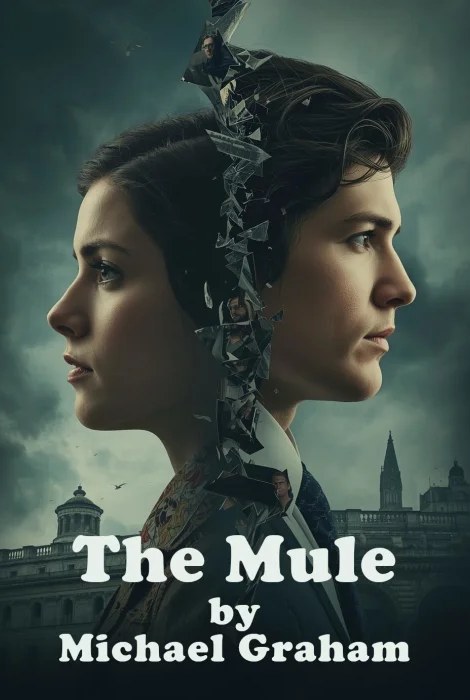
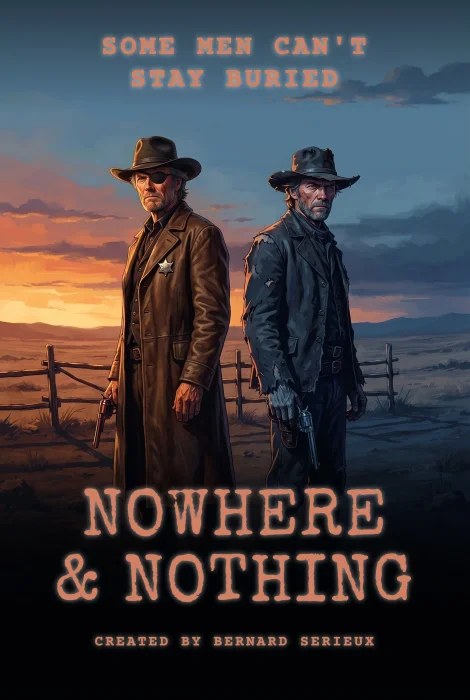
Last, the poster. On the One Sheet tab, the AI reads your breakdown and pitches you three poster concepts, about 5 credits. Change any of them, or ask it to rewrite one, then draw three drafts of the one you like, about 12 credits. When one of them is the one, finish it at full size, about 12 more. Adding your title, tagline and credit afterwards is free.
Characters with a sketch are drawn with that face, which is why sketching your leads first makes such a difference.
Working on an idea instead?
You do not need a finished screenplay to start. On an idea’s page, you can have its logline critiqued before you write a word, which is the cheapest moment to find out whether a premise is doing what you hoped. You can sketch an idea’s characters too, and they come with you when the idea becomes a script.
The short version
- Proofread your script.
- Run the Story Breakdown, with the Scene Board and locations ticked.
- Get AI Coverage.
- Create possible loglines, and use them if you want.
- Write your synopsis and pitch.
- Sketch your characters.
- Sketch your locations, and if you want, sketch their sublocations too.
- Illustrate the key scenes.
- Design your one sheet.
Every price above is for a 100-page feature and rounded; shorter scripts cost less, and the exact figure is always on the button first. What each feature costs has the full table.
Questions, or something you would like the AI to do that it does not yet? Tell us on the Discussion Board. We read every post.
Comments