

This update is about making Script 360 work better for you every day. You can filter your Scene Board by character, location or your own tags, see character illustrations right in the script, put your character and scene sketches in your script PDFs, and download a script without opening it. There are also a lot of smaller improvements. Here is what is new.
Filter and tag your Scene Board
New: your Scene Board can now show just the scenes you want to see. Open the Filter menu at the top of the board and pick a character to see only that character's scenes. Pick a location to see every scene there, whichever room it is in.
Pick both and you get that character's scenes at that location. Pick two characters and you see the scenes with either one. It works on any script, with nothing to set up.
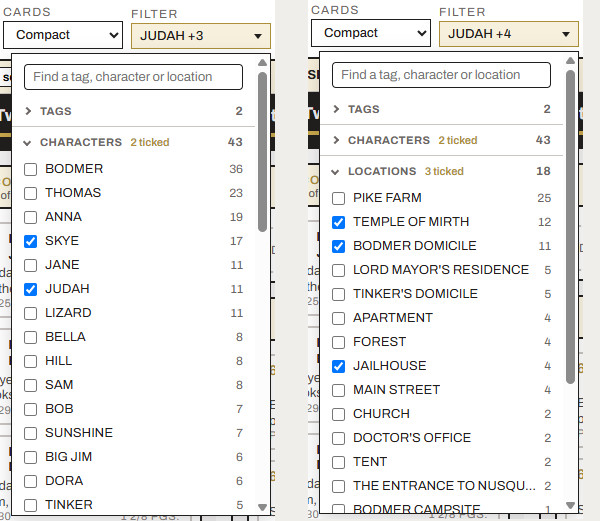
You can also make your own tags for anything else you want to track: a subplot, a theme, a set piece, a character's arc. Give each tag a name and a color, then add tags to your scene cards. Your tags are in the same Filter menu, so you can follow one thread through the whole story.
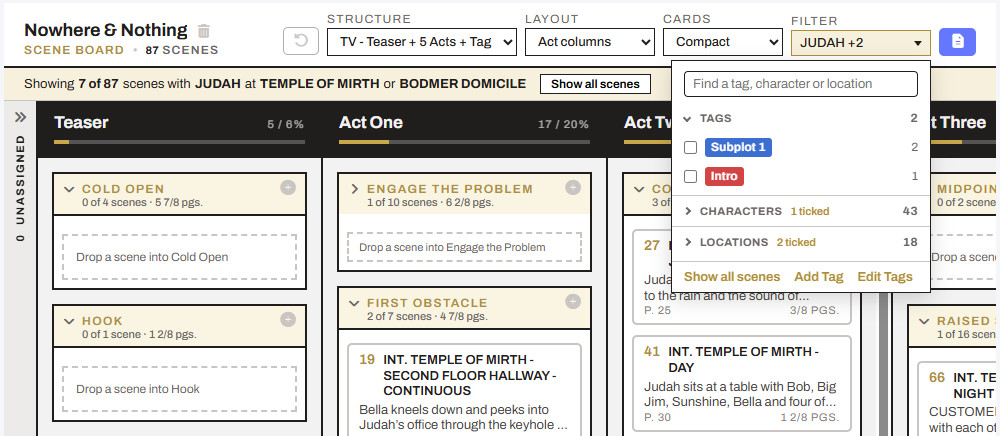
Your tags also show up in the editor. Each tagged scene gets small colored squares at the end of its scene heading, and colored chips in the Scene Navigator.
Still working out where a scene happens? On a card you write yourself, the location, INT./EXT. and DAY/NIGHT can now wait. Just write what happens in the scene. If you turn the board into a script before you have decided, the heading says LOCATION TBD.
Your characters, right in the script
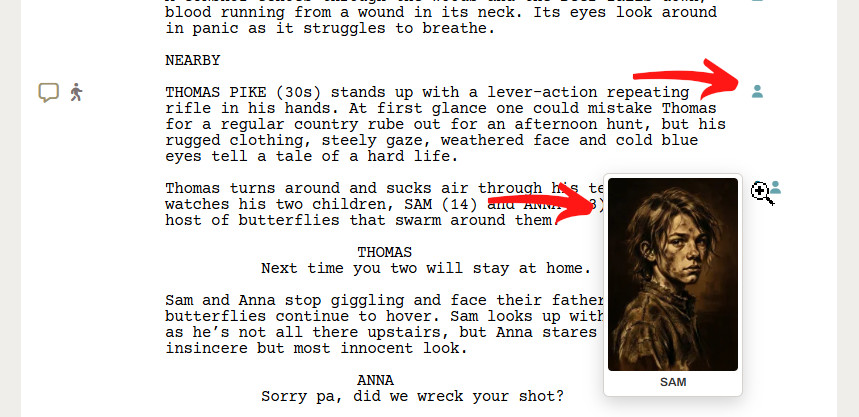
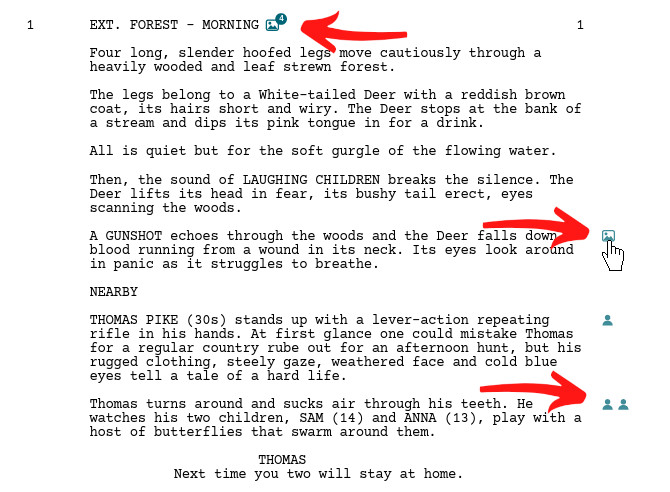
If you have sketched a character, their picture now appears where they first enter the story. That is the first time their name shows up as a character cue, or in CAPITALS in the action. A small person icon sits beside that line. Hover over it to see the character, or click it to page through your whole cast in the order they appear.
You don't have to do anything to turn this on. It works in the editor, and it works for anyone you have shared the script with.
More about sketches in your script →
Your sketches in a PDF
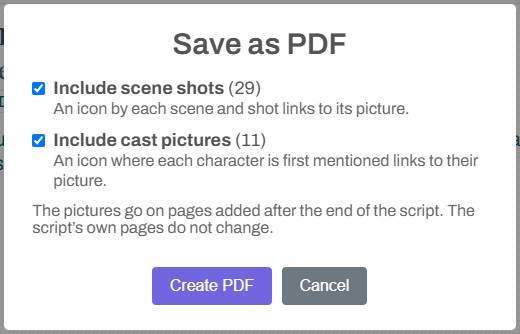
When you save a script with sketches as a PDF, you can now include them. Tick Include cast pictures, Include scene shots, or both.
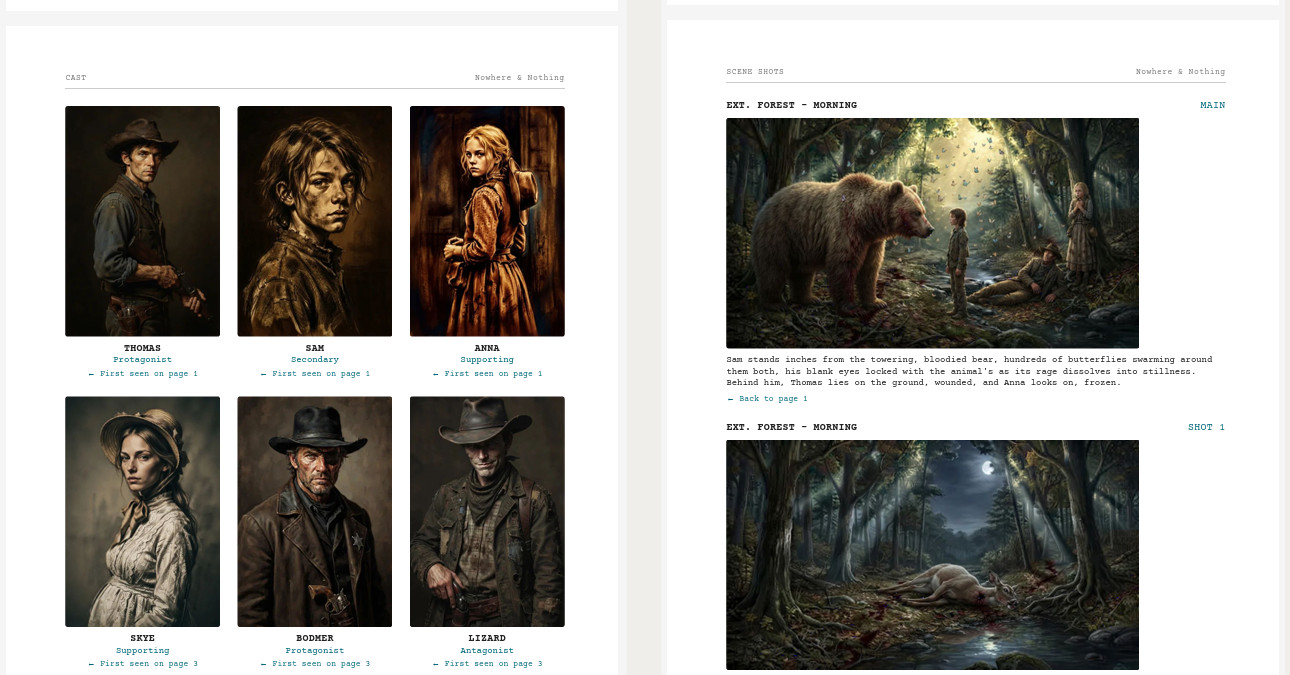
Your script keeps its normal pages. Cast pages follow the script, each character with their role and the page they first appear on. Then come your scene shots, scene by scene. Small icons in the script's margins link to each picture, and every picture links back to its page. It is a single PDF that you can send to anyone.
Download without opening the script
Need a copy of your script for a contest, a producer or your own files? Your screenplay's summary page now has a Download button. Choose PDF, Final Draft (FDX) or Fountain and the file is ready in seconds, laid out exactly as it is in the editor. The file name includes the draft's name. If readers see a different draft from the one you are writing, it asks which one you want.
Other improvements
- Readers see your latest draft. Script 360 keeps track of your rewrites. Once you have made significant changes since you last published, your screenplay's page lets you know, and Publish My Changes brings your readers up to date.
- A tidier screenplay page. Each section folds down to its heading, and every script remembers which sections you left open. Member Reviews now sit with Coverage, so all the feedback on your script is in one place.
- Full names for characters. Give a character a full name, like "Jacob Morris", alongside the name used in the script. JACOB and DR. MORRIS are then both counted as him, as long as no other character shares those names.
- Merge characters. Rename a character to a name that is already taken, and Script 360 offers to merge the two into one.
- SmartType reset. Reset to Defaults brings back the standard SmartType lists if yours get messy.
- Jump to a scene. Clicking a scene in the Scene Navigator now puts your cursor there, ready to type.
- More help. The FAQ has a new Scene Boards section, and new answers on sketches in your script and in PDFs. The Editor Tutorial has a new Scene Board chapter.
Did you know? You can earn free AI credits
For every friend who joins Script 360 through you, we add 150 AI credits to your account. That is enough for plenty of sketches, scene shots or coverage.
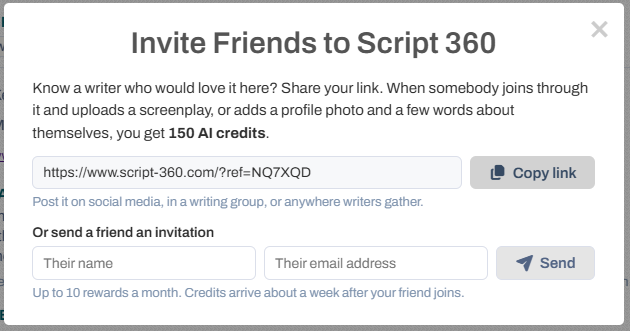
Invite your friends. Choose Invite Friends from the menu under your picture at the top of any page. Copy your personal link, or send a friend an invitation by email.
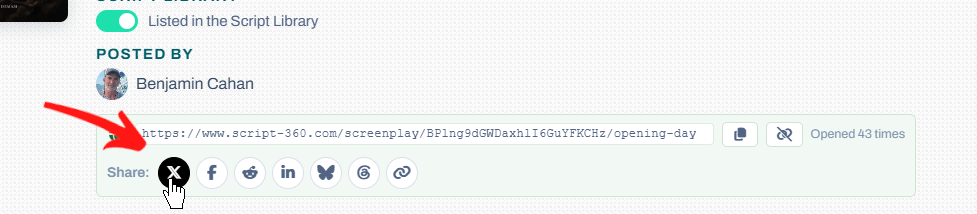
Share your scripts. Share a script with the buttons on its page (X, Facebook, Reddit, LinkedIn, Bluesky, Threads, or Copy link). The link carries your invite code, so anyone who joins after checking out your script's page earns you the credits too. Sharing your profile or your coverage works the same way.
The credits arrive once your friend has been a member for a week and has added a photo and a few words about themselves, or a screenplay. If they upgrade to a paid membership, the credits arrive straight away.
Questions or ideas? Write to us at info@script-360.com, chat with us from your dashboard, or post them on the Discussion Board.
Comments