

This update brings two big upgrades to the editor. Scene Snippets give you a place to keep scenes outside your script: a scene you want to rework, a second version to try, or an idea that has no home yet. Paragraph History keeps the earlier versions of what you write, so you can always go back to one. There are a few smaller improvements too. Here is what is new.
Scene Snippets
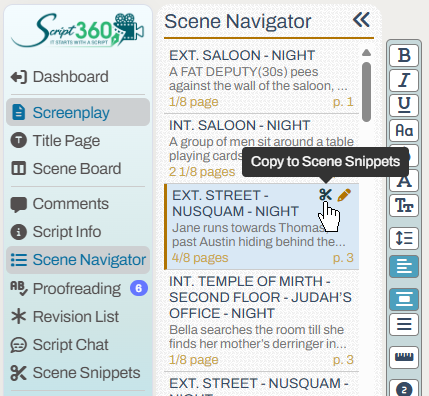
Want to rework a scene without touching your draft? Copy it into a Scene Snippet. In the editor, click the scene in the Scene Navigator and then the scissors. The scissors are also in the paragraph icon menu of every scene heading.
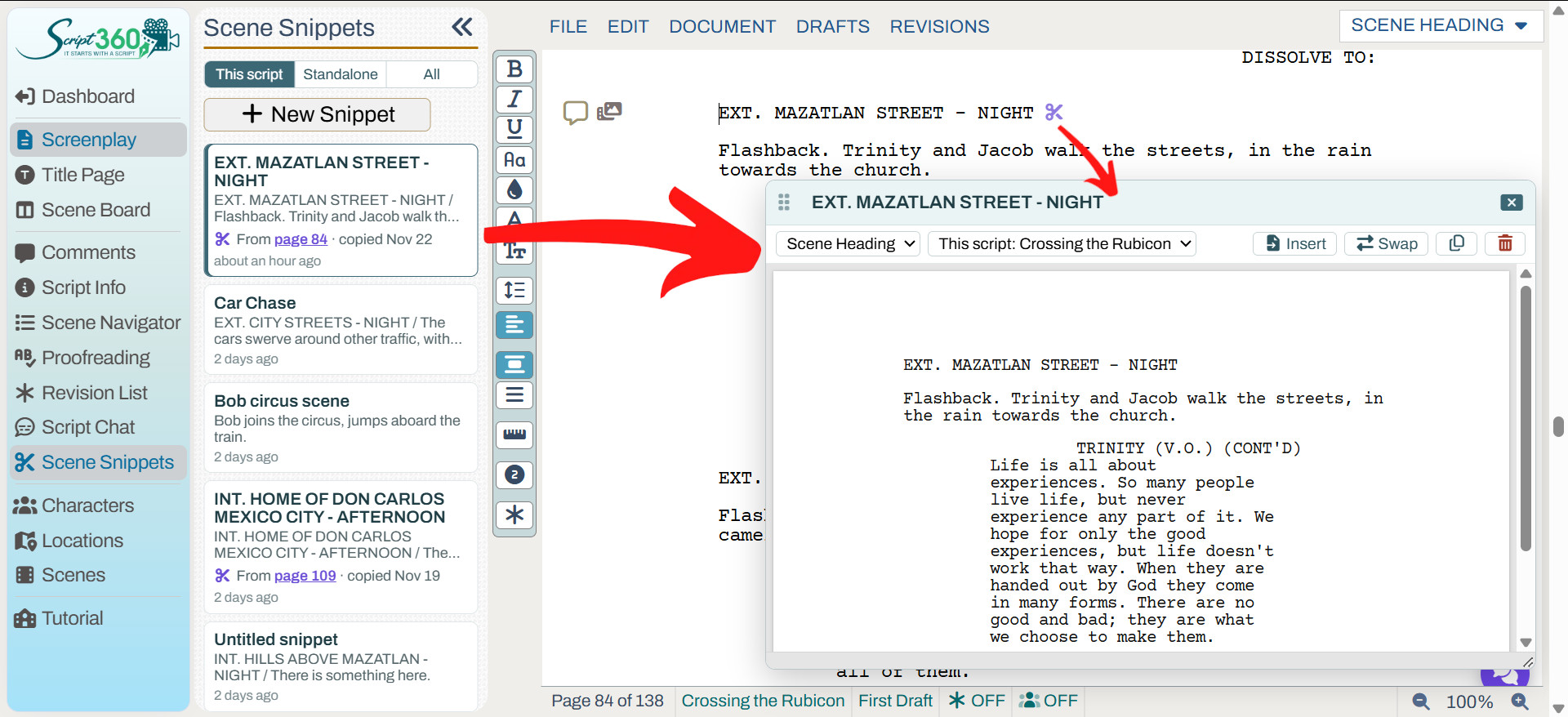
The snippet opens in a small box beside your script. You write in it just as you do in the script, with the same keys and SmartType, and it saves itself as you type. When the new version is ready, put your cursor in the script and click Insert. Or keep both, and make a copy to try the scene a third way.
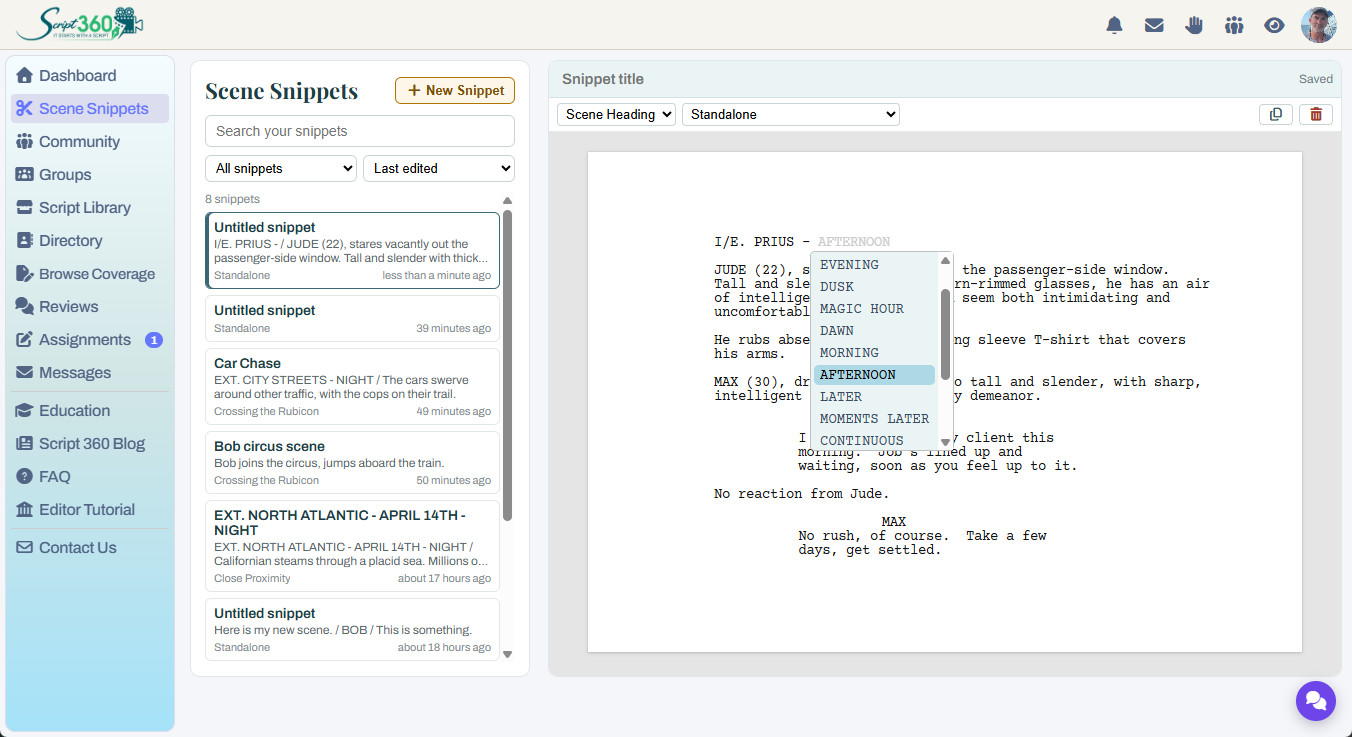
Got an idea for a scene but no script to put it in yet? Start a Standalone snippet. It is laid out like a screenplay page, and you can associate it with a script whenever you are ready.
All your snippets are on the new Scene Snippets page, in the dashboard's sidebar. Search them, sort them, and work on any of them without opening a script.
Your snippets are private. Nobody else sees them, even on a script you share.
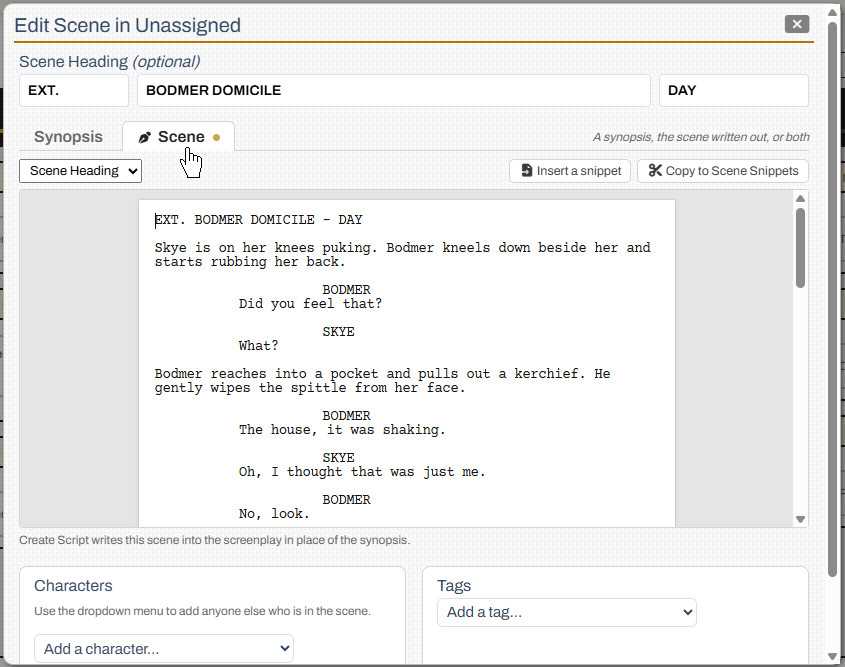
Working out a story in an idea? Every scene card on an idea's Scene Board now has a Scene tab beside the synopsis. Write the scene itself right on the card, laid out like a screenplay, or bring in one of your Scene Snippets. When you turn the board into a screenplay with Create Script, the scenes you wrote go straight into it.
Open your Scene Snippets → All about Scene Snippets →
Paragraph History
Ever rewritten a line and then wished you had the old one back? Script 360 now keeps the earlier versions of every paragraph you change, whether you made that change yesterday or a year ago.
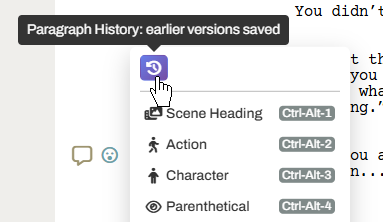
Click the paragraph icon beside any paragraph. The first button opens its Paragraph History, and it is highlighted when there is an earlier version to go back to.
Every version is listed, newest first, with when it was written and who wrote it. The words each version added are in red, so you can see at a glance what changed. Click Revert to replace the current paragraph with that version, right in the script, and the trash can to delete ones you don't need.
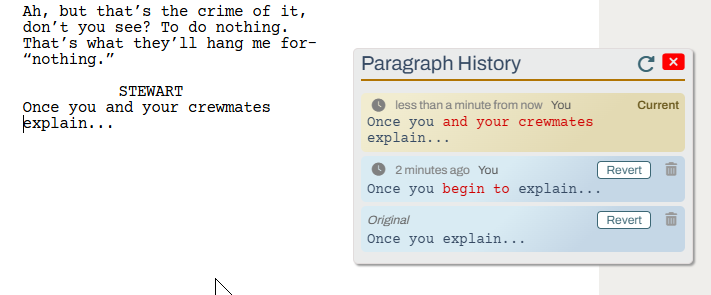
Everything you type while you stay in a paragraph counts as one version. The versions are kept when you save your script, so if you leave without saving, they go too.
Paragraph History is for you and your co-authors. If you have invited someone to edit your script, their changes are listed under their name, so you can always see what they changed and put an earlier version back if the changes are not to your liking.
Other improvements
- Automatic (CONT'D). When a character speaks repetitively in the same scene, (CONT'D) now appears after their name by itself. It is on for new scripts. To turn it on for a script you already have, open Document > Mores/Continueds, where you will find a checkbox to turn it on.
- SmartType knows who speaks next. When you start a new character cue, the characters already talking in the scene come first, and the one most likely to speak next is waiting in grey. Simply press Enter to add the suggested name in the script, which should make back and forth conversations between two characters that much simpler to enter.
- Go To any page or scene. Press Ctrl+G (⌘+G on a Mac), choose Edit > Go To Page/Scene, or click the page number at the bottom of the editor, enter a page or scene number, and jump right to it.
- Mac shortcuts. On a Mac, the editor's shortcuts now use the ⌘ key, and the menus show them that way.
Questions or ideas? Write to us at info@script-360.com, chat with us from your dashboard, or post them on the Discussion Board.
Comments