
Activity Log
Loading content...
Change History
Go back to any earlier wording of a paragraph
Every change to a paragraph is kept
Whenever anyone changes a paragraph in your script — you, a co-author, or someone you invited to edit — the way it read before is kept. You can look back through every version of that paragraph and put any of them back, whenever you like.
A paragraph’s changes are added to its history when you move on to another paragraph, and they become part of it for good when the script is saved. If you leave the editor without saving, those changes are thrown away, and so is their history.
A brand new paragraph has no history while you write it. Its history starts the first time you come back to it and change it.
Opening a paragraph’s history
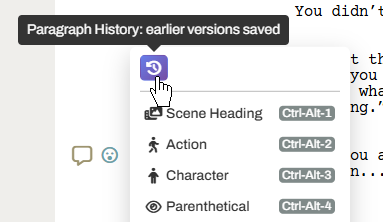
Put your cursor in the paragraph and click the little element icon to its left. The first button at the top of the menu is Paragraph History. When the paragraph has earlier versions you can go back to, the button is shaded gold.
Reading the history
The history opens beside the paragraph, with the newest version at the top:
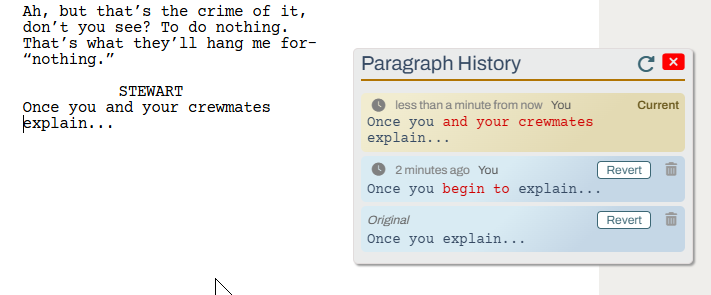
- Each version shows how long ago it was written and who wrote it. The earliest one is marked Original.
- Words that a version added are shown in red. Words that were taken out are not shown.
- The version that matches the paragraph as it reads now is marked Current.
- Long paragraphs are cut off after six lines. Click the text to see all of it.
- The list keeps itself up to date while you type. The circular arrow at the top refreshes it right away.
The history closes when you move to another paragraph, the same way the comments box does.
Going back to an earlier version
Click Revert on any version to put that wording back into the paragraph. Only the words change — the paragraph keeps its element type. The reverted wording becomes a new version of its own, so if you change your mind you can go back again, or just press Ctrl-Z (Cmd-Z on a Mac).
Clearing out versions you do not need
A paragraph you rework a lot can build up a long list. To keep only the versions you might want again, click the trash can on any version you will not need. There is no “Are you sure?” question, so you can clear several quickly. Instead, an Undo button shows in the bottom corner of the screen for a few seconds, in case you clicked the wrong one.
The version marked Current cannot be deleted, since it is what the paragraph says now.
Only the script’s author and co-authors see the Paragraph History button and can revert or delete versions. Changes made by anyone you invited to edit are still kept, under their names, so you can see exactly what they changed — and put back what you had.
Loading screenplays…
Loading members…
Loading coverage…
Loading posts…
Education
Webinars and articles on the craft and business of screenwriting, from Script 360 and writers who know the work.
Loading webinars…
Loading articles…
Attachments/Media
The tabs in this section are currently hidden. Click on any of the tab titles above to open one.
| Title | Size | Uploaded | Actions |
|---|
No Attachments
No Images
No Videos
No Audio Files
Series / World
For a TV series, or a film and its sequels: keep the characters and locations that recur here, and every script you add to the folder can bring them in.
The tabs in this section are currently hidden. Click on any of the tab titles above to open one.
Scripts
Attachments/Media
The tabs in this section are currently hidden. Click on any of the tab titles above to open one.
| Title | Size | Uploaded | Actions |
|---|
No Attachments
No Images
No Videos
No Audio Files