

We have added a lot to Script 360 over the past few weeks, nearly all of it aimed at the same goal: helping your screenplay make its case to the people who read it. Here is what is new, and where to find it.
Analyst Coverage
Alongside our AI coverage, you can now have your screenplay read by one of our experienced Staff Analysts. Choose Full Coverage, a Quick Take, or a First Act Review of your first 25 pages. Full Coverage and a Quick Take score the script in the same nine categories as our AI, so you can see the two side by side, and your analyst's report arrives within about a week.
Coverage ranges from $49 to $129, depending on the type of coverage and the length and kind of script. Full Coverage and a Quick Take can include a 40-minute Zoom call with your analyst to talk it through. Order it from the Coverage section of your script's summary page.
Competition placements
Has your screenplay placed in a competition or festival? Add it. In Edit Script, the Competitions step lets you list each one: the competition, the year, how far it went (from Winner and Finalist to Quarter-Finalist or Official Selection), the category, and a link to the results. Start typing a competition's name and pick it from the list, or add one that is not there.
Your placements appear on the script's summary page, and a laurel on its Script Library card shows readers at a glance that it has placed.
Your representation
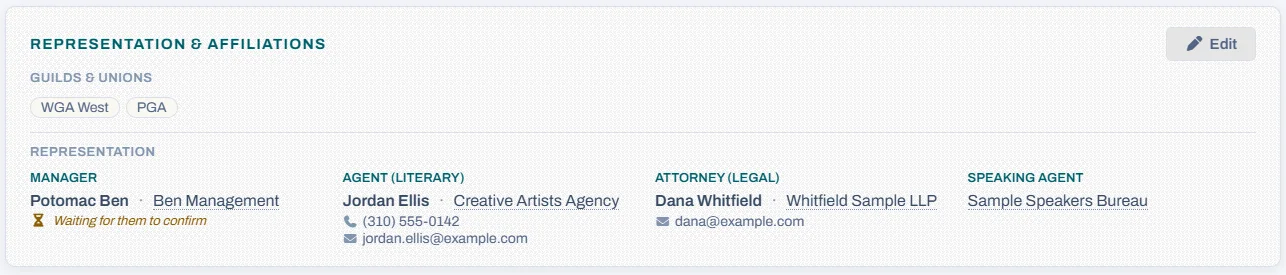
If you are represented, put it on your profile, so anyone interested in you or your screenplays knows who to contact. In Edit Profile, the Reps tab takes your agent, manager, attorney, publicist or anyone else who represents you, with their company and, if you like, their phone and email. Contact details are only shown to signed-in members.
If your rep is a Script 360 member, pick them from the list as you type. Once they confirm, their name links to their profile from yours.
Attachments
A producer, director or actor attached to a project can make all the difference to a reader. Now you can show them. In Edit Script, the Attached step lets you list everyone attached to the screenplay and their role: Producer, Director, Actor, or any other.
They appear on the script's summary page under Attached to This Script, alongside your agent and manager from your profile, and an icon on its Script Library card shows how many are attached. If someone you attach is a Script 360 member, they are asked to confirm, and once they do, they can read and comment on the screenplay.
Favorites
Found a screenplay you want to come back to? Press the heart on its Script Library card, on its Library page, or on its summary page, and it is added to your favorites. Tick My favorites in the Script Library filters to see them all together.
Your favorites are private: nobody else can see what is on your list. A writer can see how many members have added their screenplay to their favorites, but never who.
Keep your profile private
If you would rather not be found by everyone, turn on Keep my profile private on your own profile. You leave the Member Directory and every member search, and your profile can only be seen by people you have been in contact with: members you have messaged, invited or accepted an invitation from, your representatives and clients, and the people attached to your screenplays. Your name still appears on your own work, without a link to your profile.
Can I keep my profile private? →
Other additions
- Fountain files. Import a screenplay saved in the Fountain format (.fountain or .txt) when you create a new script, and export any script back out as Fountain from the editor's File menu.
- Credits on your profile. List the films, series and plays you have worked on, each with an optional poster and IMDb link.
- More jobs to choose from. Your profile can now say what you do from 34 jobs, grouped into writing, industry, representation, production and other.
- Messages. Write to another member from their profile or their card in the Member Directory, without either of you sharing an email address.
Questions or ideas? Write to us at info@script-360.com.
Comments