
Activity Log
Yes — you can see where your story happens, and the moments that happen there
You know what that bakery looks like. You know where the light comes in, what is on the counter, and how the boy stands when the captain leans down to talk to him. Now everyone else can see it too.
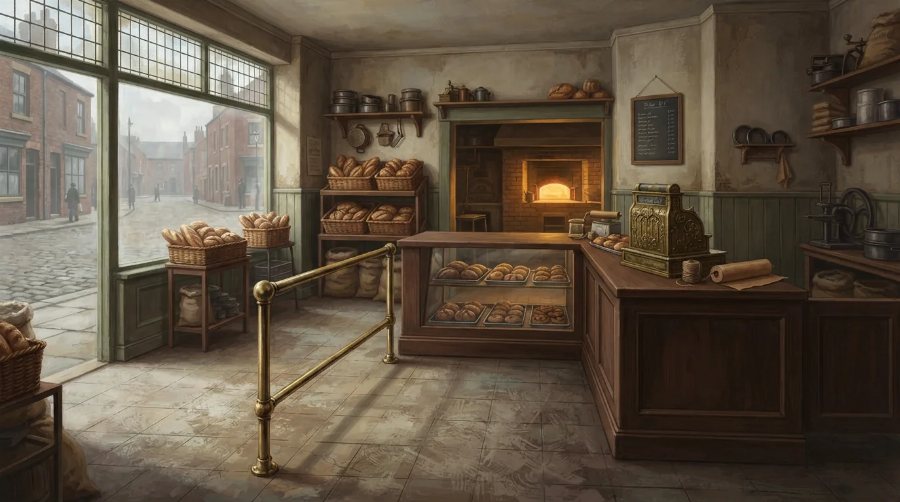 The location: the bakery, drawn empty
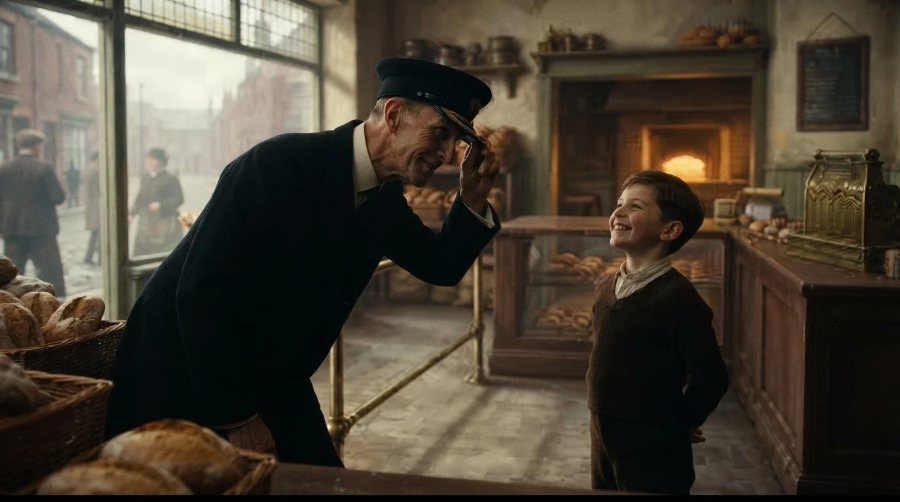 The scene: the same bakery, with the characters in it
First, the places
Open a screenplay and go to Locations in the Script Elements widget. Press Find the major locations and our AI reads your scene headings and works out where your story actually spends its time. It knows that BOB’S HOUSE - KITCHEN and BOB’S HOUSE - PORCH are both Bob’s house, and it writes each place up: where and when it is, what it looks like, the light and the mood, and the things in it that make it that place.
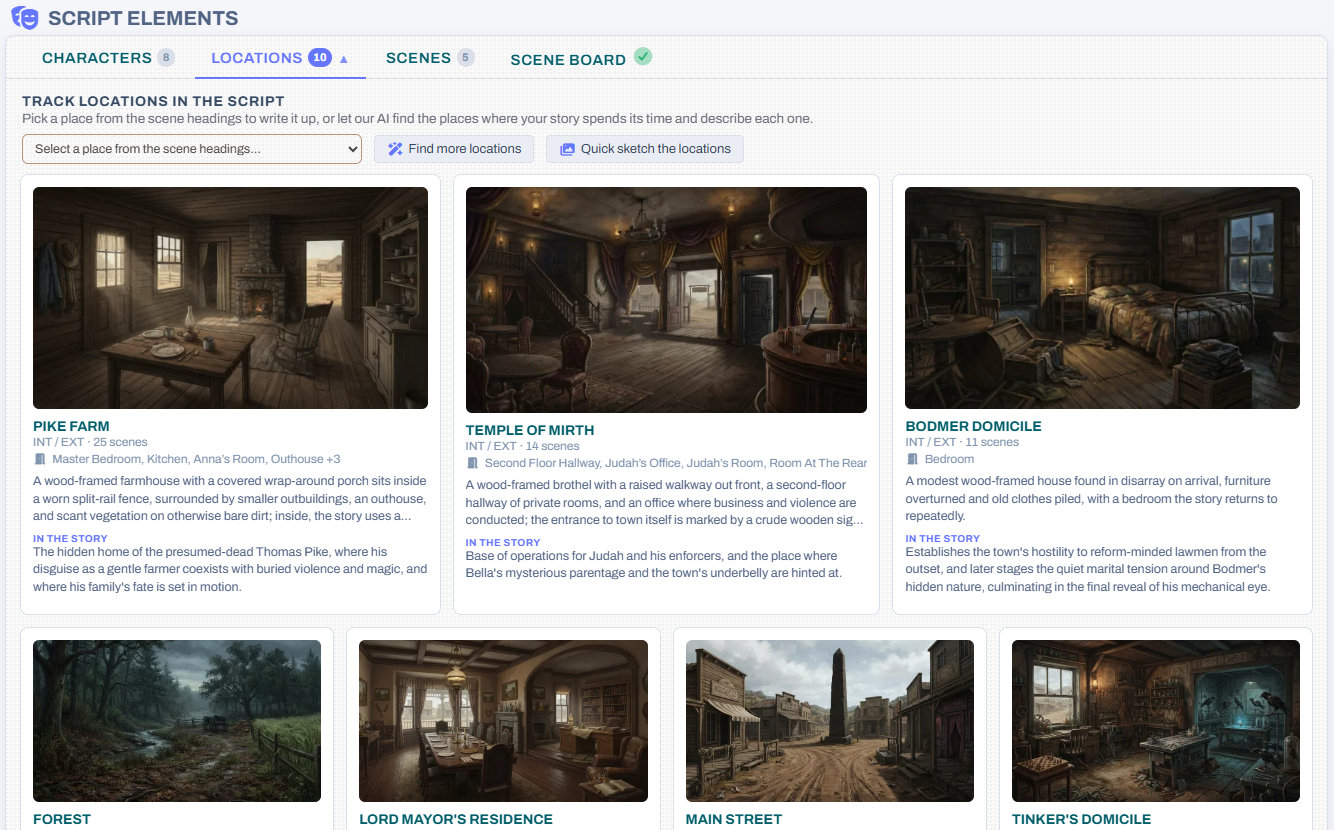
It costs a few credits, depending on how many places your script has — usually between ten and twenty-five — and the price is shown before you press the button. You do not have to use it, either: pick any place from your scene headings, or add one by hand, and describe it in your own words.
Then sketch them
Open a location and press Sketch this location. Choose a style — concept art, a film still, a period photograph, a painting, charcoal and more — and choose where the camera stands:
- Establishing shot — the whole place, from outside
- Interior, wide — standing in the room
- Exterior, on location — standing in the place, for streets, decks, fields and forests
- A closer detail — one corner of it
- From above
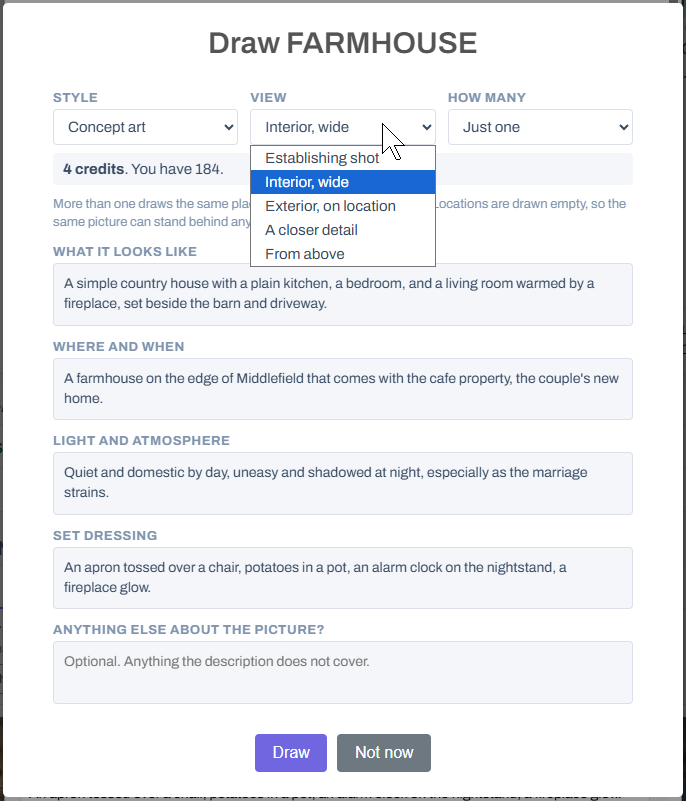
An EXT. location starts outside and an INT. location starts inside, so the first choice is usually the right one. Places are drawn empty, so the same picture can stand behind every scene set there.
Each sketch is 4 credits. Draw up to three at a time and keep the one you like — the others stay in the gallery in case you change your mind.
Have a lot of locations? Quick sketch the locations draws one picture of each, in one style, for 10% less when you do two or more. Sketch only the ones without a picture, or redo them all.
Then picture your key scenes
The Scenes tab lists the key scenes from your Story Breakdown, with the location and the characters in each. You can add any other scene from the list too.
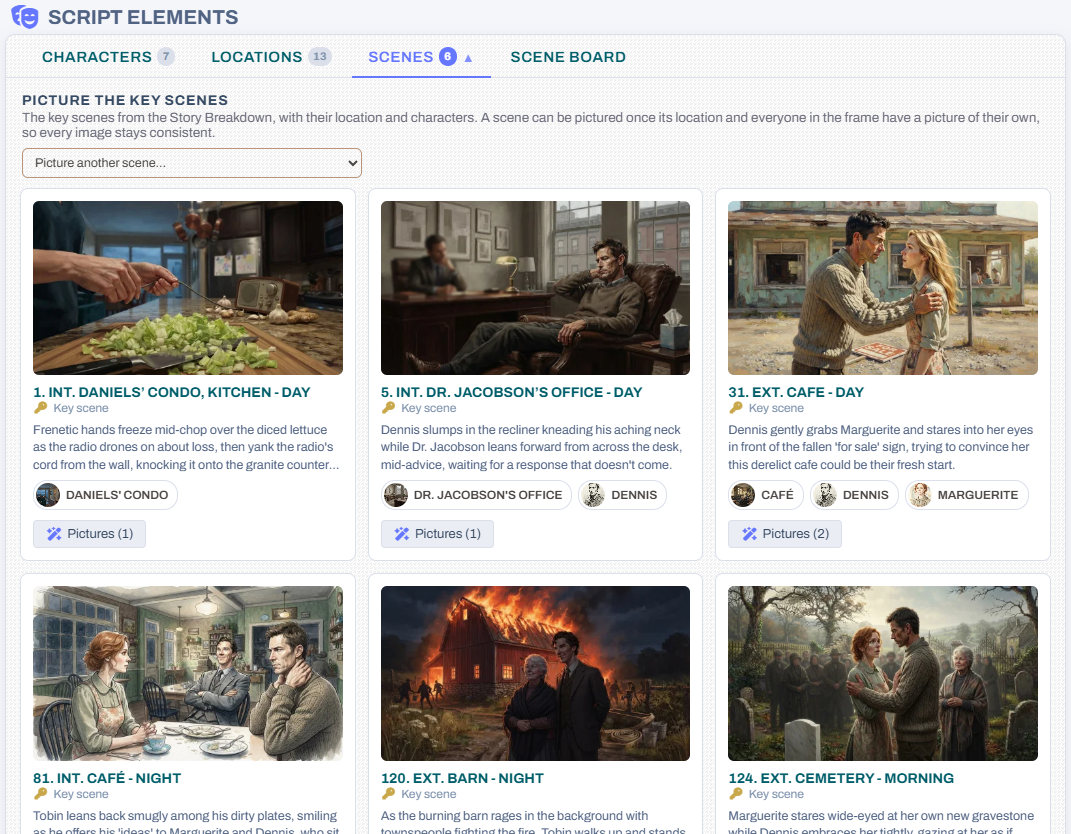
Press Picture this scene and our AI reads the scene and picks the moment to show — who is in the frame, and what they are doing. Change any of it, then draw it.
A scene picture uses the location’s picture and each character’s picture, so the same people and the same place look the same in every scene. That is why a scene can only be drawn once its location and everyone in the frame have a picture of their own. If something is missing, the dialog tells you, with a button to sketch it there and then. If the scene’s location has not been written up yet, our AI drafts one from the scene for you to check and save.
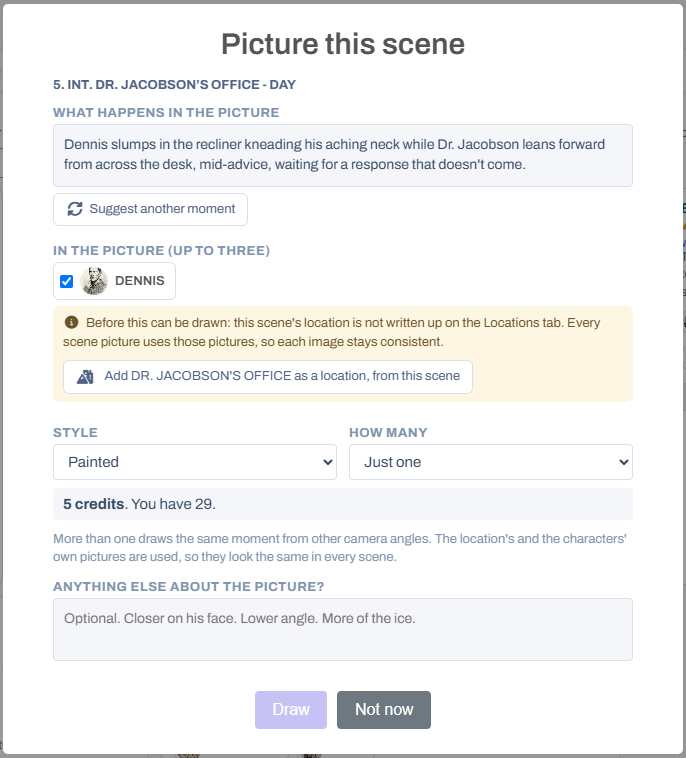
Each scene picture is 5 credits, up to three at a time, and you choose the one to keep.
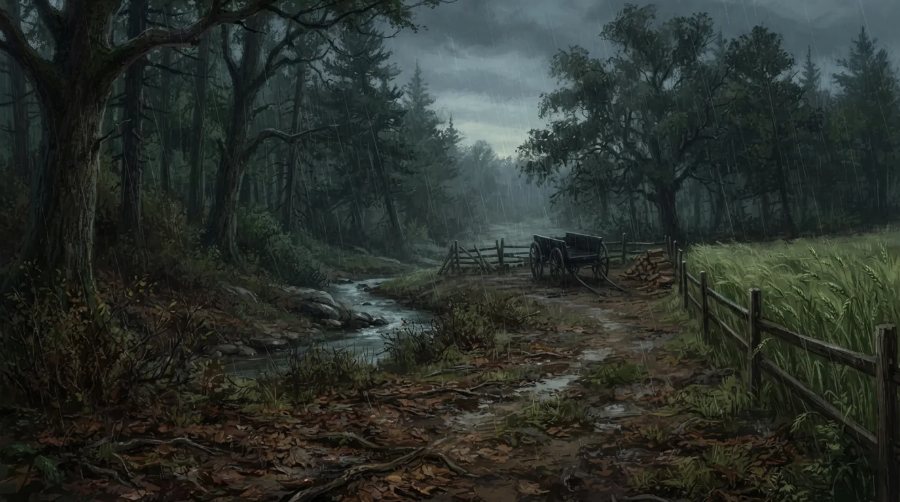 The forest, as a location
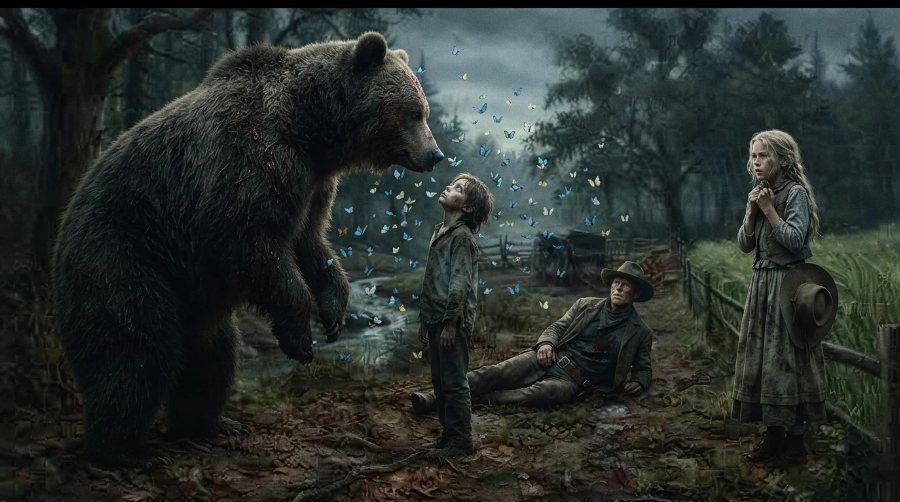 And the scene that happens there
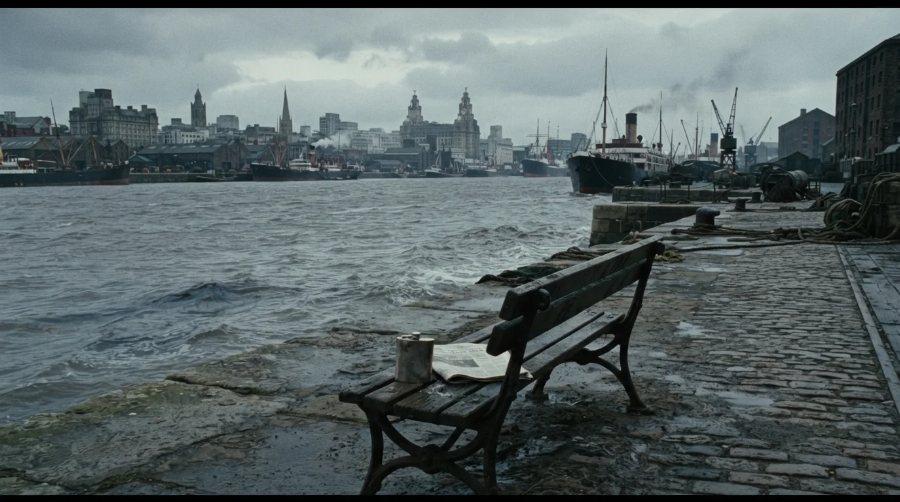 The Liverpool waterfront, as a location
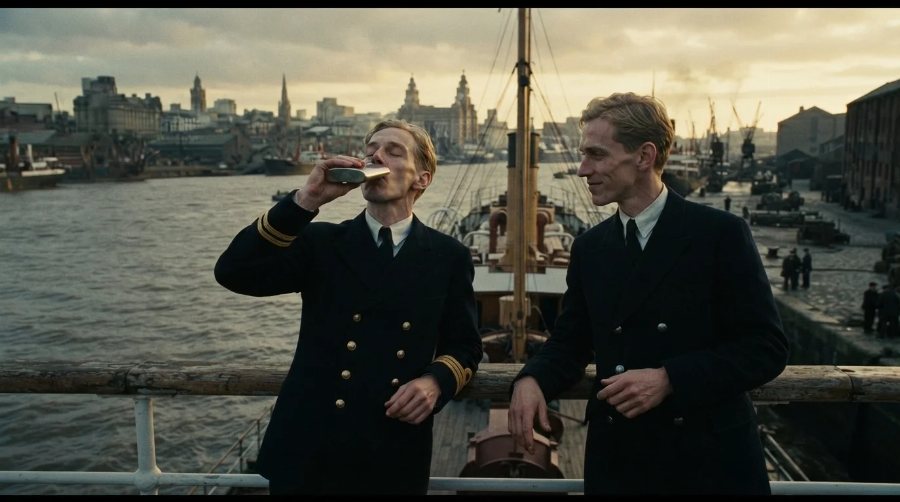 And two of the crew, about to sail
Who sees them
Anyone who can read your script can see your location pictures, and the scenes that have a picture, on its Script Library page and on its public link. They sit in the Characters, Locations and Scenes panels, closed until a reader opens them. Scenes you have not pictured yet are never shown.
In the Script Library, a script with locations shows how many on its card. Click the number to see them:
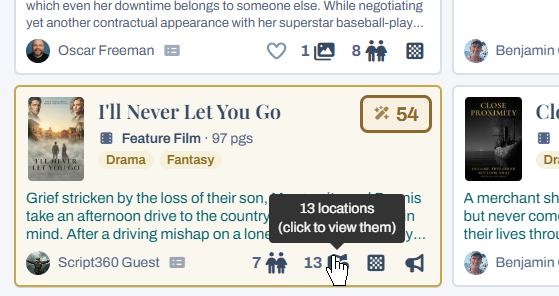
Any picture can be downloaded for a look book or a pitch deck, and any you do not want can be deleted.
Where to find it
Open any screenplay and look at the Locations and Scenes tabs in the Script Elements widget. Locations are also in the editor, beside Characters. Want to see more first? Here are more examples.
Loading content...
Loading screenplays…
Loading members…
Loading coverage…
Loading posts…
Education
Articles on the craft and business of screenwriting, from Script 360 and writers who know the work.
Loading articles…
Attachments/Media
The tabs in this section are currently hidden. Click on any of the tab titles above to open one.
| Title | Size | Uploaded | Actions |
|---|
No Attachments
No Images
No Videos
No Audio Files
Scripts
Attachments/Media
The tabs in this section are currently hidden. Click on any of the tab titles above to open one.
| Title | Size | Uploaded | Actions |
|---|
No Attachments
No Images
No Videos
No Audio Files