
Activity Log
Yes — Script 360 can design a movie poster for your screenplay
In the film business the theatrical poster is called a one sheet, and it does one job: it tells somebody what your story feels like before they have read a word of it. A good one belongs on a pitch deck, a public link, a festival submission and the top of your query email.
Script 360 can now make one for any screenplay you have written, and at every step of the way you decide what it looks like.
All it needs is your Story Breakdown
A poster that could belong to any film is no use to you, so ours starts from yours. Before you begin, run the Story Breakdown in the AI Extras widget on your script's Summary page. That is how the AI comes to understand your story — its genre and tone, its characters, its setting, its themes and its mood — and everything the poster suggests is built on it.
Once the breakdown is done, open the One Sheet tab in the same widget and press New one sheet.
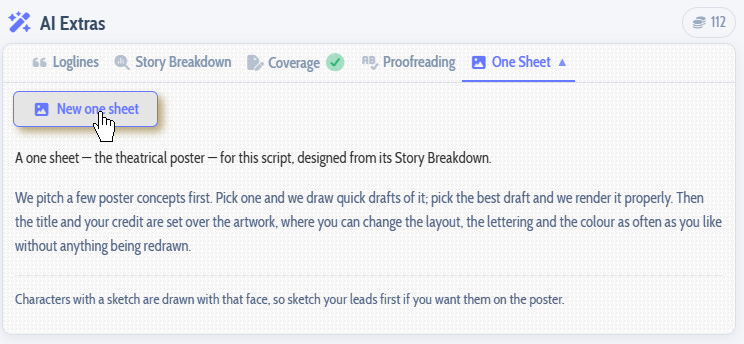
One more thing is worth doing first, though you do not have to. If your leading characters have a character sketch, the poster draws them with that face — so the people on your poster are the same people you have already cast.
Step 1: Choose a concept
We pitch you three genuinely different ideas for the poster: one built around your characters, one around a symbol or object from your story, and one around its world. Each shows its colours, who is in it, and a line saying what the poster shows and why it works.
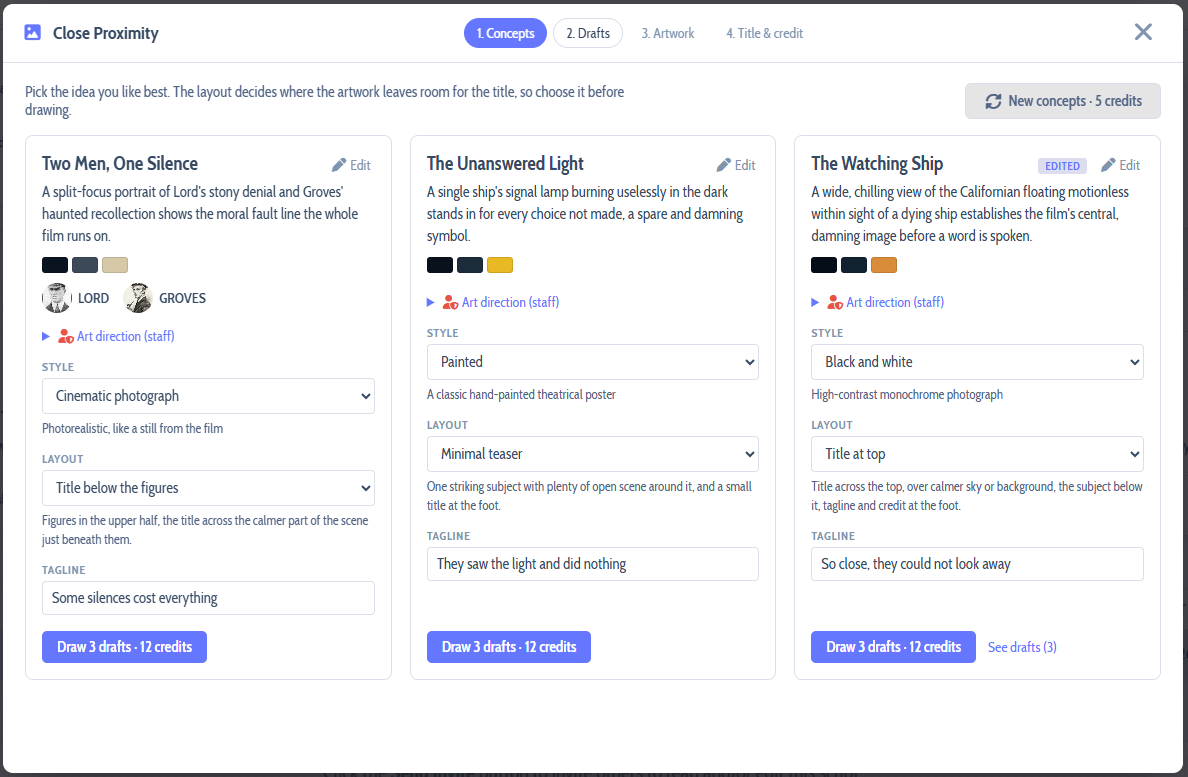
Every concept comes with choices you can change before anything is drawn:
- Style — Cinematic photograph, Painted, Retro illustrated, Bold graphic, Black and white, or Watercolour and ink.
- Layout — where the title will sit: at the bottom, at the top, just below the figures, or small beneath a minimal teaser image.
- Tagline — keep ours, rewrite it, or have none.
If a concept is close but not quite what you see, press Edit. Change its name and its summary, tick which of your characters should appear, change its colours, and add your own thoughts — set it at night, keep the town in the background, make her look away — and they go along with the concept every time it is drawn.
Don't like the three it created? Ask for a new set of concepts.
Step 2: Pick a draft
Press Draw 3 drafts and you get three quick sketches of your concept to choose between — and they are not three copies of the same picture. One is the concept exactly as pitched; the other two are different takes on it, from a different distance, a different angle or a different moment, each labelled so you can tell them apart.
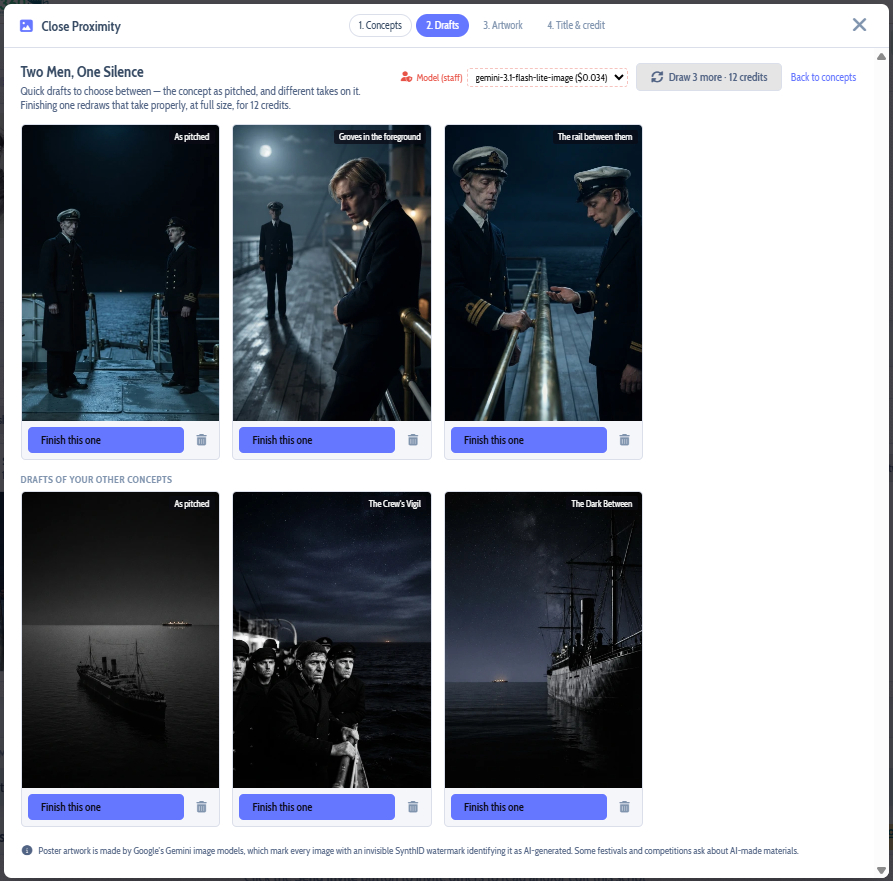
Draw more whenever you like, from this concept or another. Every draft is kept.
Step 3: Finish the artwork
When a draft is the one, press Finish this one. It is drawn again properly, at full size and full detail, keeping the composition you chose. Not happy with the result? Redo it — the first version stays too, so you can compare them.
The artwork is always drawn without any words on it. That is deliberate: your title is added in the next step as real lettering, so it is always spelled correctly and you can change it as often as you like.
Step 4: Title and credit
This is where the poster becomes yours. Your title and your writing credit are filled in from your script — and you can change either of them for this poster, which is exactly what you want if you are posting a screenplay somebody else wrote.
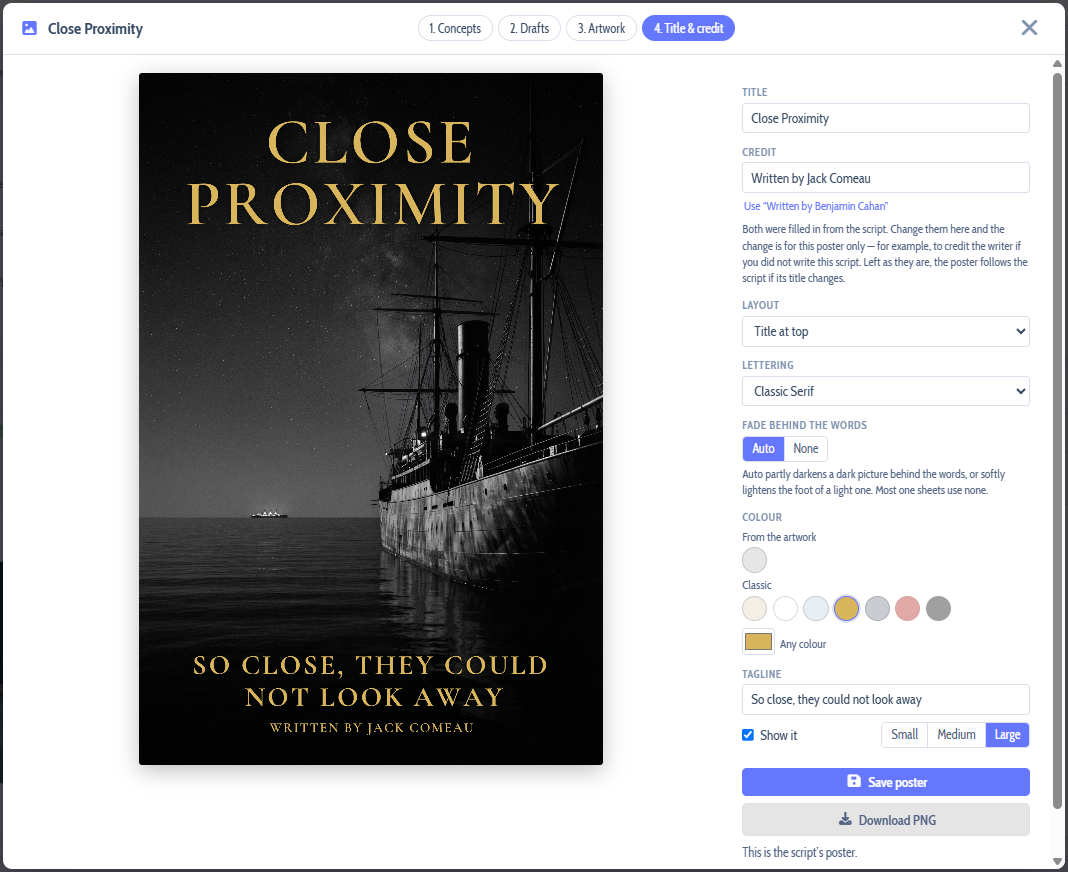
- Layout — move the title to a different part of the poster.
- Lettering — six title styles, from condensed thriller capitals to classic serif and wide science-fiction lettering.
- Fade behind the words — Auto softly darkens a dark picture behind the title, or lightens the foot of a light one; None leaves the artwork exactly as drawn.
- Colour — colours taken from your own artwork, a set of classic poster colours, or any colour at all. Any that would be hard to read against the picture are faded so you can see which ones will work.
- Tagline — show it or hide it, edit it, and make it Small, Medium or Large.
You can change all of these as often as you like, and none of it costs a thing: nothing is redrawn, only the lettering moves.
Then press Save poster. You can Download it as a full-size PNG, and when you are ready, Use Poster makes it your script's poster everywhere Script 360 shows one — on your script's card, in the Script Library, on its public link and in emails.
Everything you make is kept
The One Sheet tab keeps every poster you have started, each with its finished versions first, then its artwork and its drafts. Finish two or three versions with different lettering and choose between them later. View artwork takes you straight back into any of them.
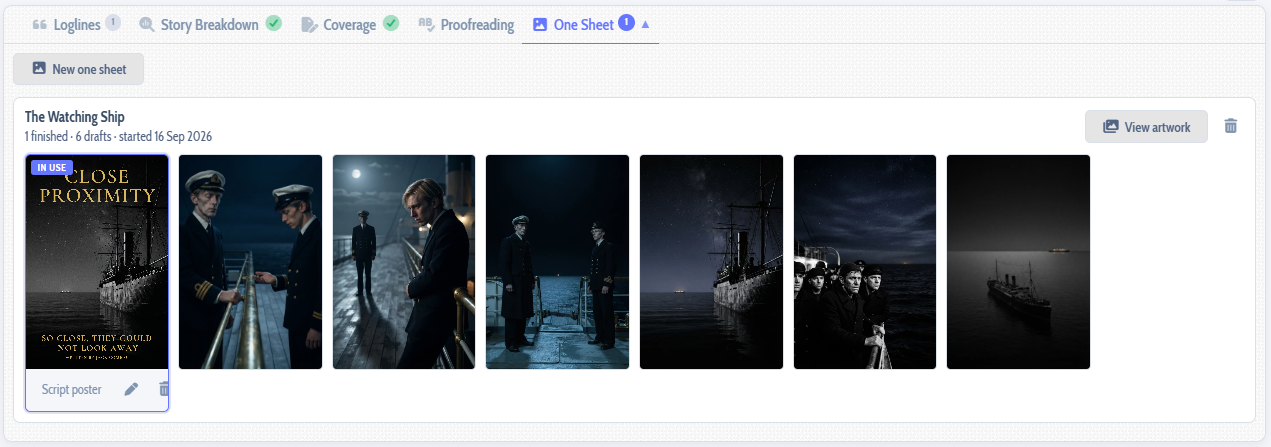
Choices at every step
That is the point of the whole thing. The concept, the style, who appears, the colours, the composition, the draft, the words, the lettering and where they sit — every one of them is yours to choose, so no two writers end up with the same poster, and yours ends up looking like your film.
What it costs
- Concepts — 5 AI credits for a set of three.
- Drafts — 12 credits for three.
- Finished artwork — 12 credits.
- Title, credit, lettering, colours and layout — free, as often as you like.
A complete poster is typically around 29 credits. You are only charged for pictures that actually arrive — the AI occasionally declines to draw something — and the price is always shown before you press the button. See What are AI credits, and what does each feature cost?
Good to know
No real people. Posters are never drawn to look like a real actor or public figure, even if your breakdown mentions one. Your characters are drawn from how they are described.
AI-made artwork is marked as AI-made. Our image provider adds an invisible watermark to every picture identifying it as AI-generated. Some festivals and competitions ask about AI-made materials, so it is worth knowing before you submit.
Go and see what your film looks like.
Loading content...
Loading screenplays…
Loading members…
Loading coverage…
Loading posts…
Education
Articles on the craft and business of screenwriting, from Script 360 and writers who know the work.
Loading articles…
Attachments/Media
The tabs in this section are currently hidden. Click on any of the tab titles above to open one.
| Title | Size | Uploaded | Actions |
|---|
No Attachments
No Images
No Videos
No Audio Files
Scripts
Attachments/Media
The tabs in this section are currently hidden. Click on any of the tab titles above to open one.
| Title | Size | Uploaded | Actions |
|---|
No Attachments
No Images
No Videos
No Audio Files