
Activity Log
With the scissors
There are two places in the editor to copy a scene into a snippet. Both use the scissors button.
From the Scene Navigator
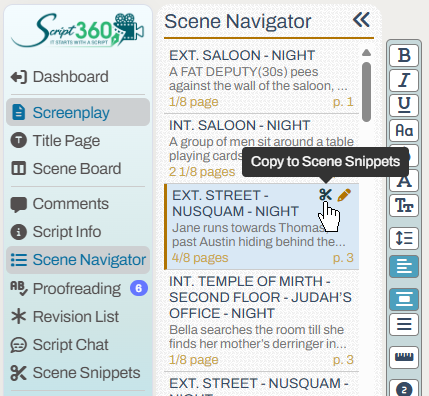
Open the Scene Navigator and click the scene you want. The scissors appear at the top right of that scene’s row; click them.
From the scene heading
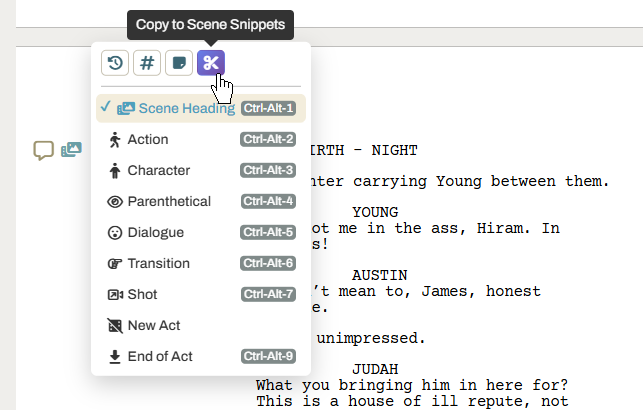
Put your cursor in the scene heading and click the paragraph icon beside it. The scissors are in the row of buttons at the top of the menu.
What gets copied
- The whole scene, from its heading down to the next scene heading.
- The text as it reads now. Text you deleted in Revision Mode is left out, and the revision colours are not carried over.
- Scene numbers stay with the script.
The snippet opens straight away, titled with the scene heading and filed under the script. Change the title to anything you like.
A snippet is a copy. Whatever you do to it, the scene in your script stays as it was until you choose to put the snippet back in.
Loading content...
Loading screenplays…
Loading members…
Loading coverage…
Loading posts…
Education
Webinars and articles on the craft and business of screenwriting, from Script 360 and writers who know the work.
Loading webinars…
Loading articles…
Attachments/Media
The tabs in this section are currently hidden. Click on any of the tab titles above to open one.
| Title | Size | Uploaded | Actions |
|---|
No Attachments
No Images
No Videos
No Audio Files
Series / World
For a TV series, or a film and its sequels: keep the characters and locations that recur here, and every script you add to the folder can bring them in.
The tabs in this section are currently hidden. Click on any of the tab titles above to open one.
Scripts
Ideas
Attachments/Media
The tabs in this section are currently hidden. Click on any of the tab titles above to open one.
| Title | Size | Uploaded | Actions |
|---|
No Attachments
No Images
No Videos
No Audio Files