
Activity Log
Loading content...
Sharing Your Script with Others
Invite others to read and even edit your screenplays
Invitations to read, comment on, and edit scripts depends on your Script 360 Membership
Built into Script 360 is an ability to share your scripts with others, whether to read or edit (make changes to) a given script. What you can do depends on your Script 360 membership:
- Free members: You can invite others (members or not!) to read and optionally to leave comments on your Script 360 screenplay.
- Basic Members: Basic members can also invite others to collaboratively edit their screenplays.
- Pro Members: Pro members can also invite others to be co-authors on any of their screenplays. Co-authors have complete control over the script with the exception of deleting it, which is reserved exclusively for the original author.
The invitation process...
To send an invite to anyone (Script 360 member or not), you need to first upload a screenplay (or create a new one). Once you have a script, navigate to the script's summary page, where you will see an orange Invite button in the bottom right corner of the blue info box:

Click on that button and a popup box will appear where you can specify who to invite, along with the privileges you wish to bestow on the invitee. The first thing to do is to enter the name and email address for the person you want to invite, then to use the dropdown menu to select what privilege you want to give them:

With Edit invitations, there's a bit more to decide...
In the following image, you'll see the extra selectors for when you want to invite someone to edit your script:
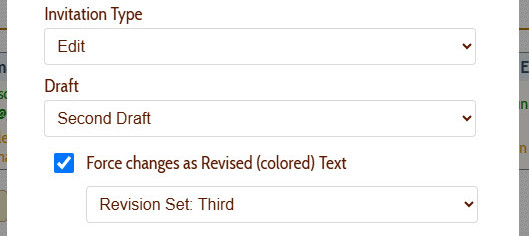
Since all edit invites are draft-specific, you will need to choose what draft they are being invited to edit. Additionally, you can choose whether to force all their revisions to be marked as 'revised text', which we strongly advise to be able to see what others have changed. In that case, you will need to specify which Revision set will own that user's changes.
When you have make your selections...
Click on the Send Invite button to send out the invite:

Invitations are sent via email, and you will be notified when it has been accepted or declined.
Loading screenplays…
Loading members…
Loading coverage…
Loading posts…
Education
Webinars and articles on the craft and business of screenwriting, from Script 360 and writers who know the work.
Loading webinars…
Loading articles…
Attachments/Media
The tabs in this section are currently hidden. Click on any of the tab titles above to open one.
| Title | Size | Uploaded | Actions |
|---|
No Attachments
No Images
No Videos
No Audio Files
Series / World
For a TV series, or a film and its sequels: keep the characters and locations that recur here, and every script you add to the folder can bring them in.
The tabs in this section are currently hidden. Click on any of the tab titles above to open one.
Scripts
Attachments/Media
The tabs in this section are currently hidden. Click on any of the tab titles above to open one.
| Title | Size | Uploaded | Actions |
|---|
No Attachments
No Images
No Videos
No Audio Files