
Activity Log
Loading content...
Revision Sets
Allows you to group related revisions
Revision Sets let you group changes
When you (or invited editors) revise your script over time, you might want to keep a record of old changes as you work to make new changes, and revision sets allow you to group those changes as you see fit. Use just one set to track and see all changes, or move to a new revision set for every new set of changes you undertake.
To manage the revision sets, choose the Revision Set Manager item in the Revisions menu:
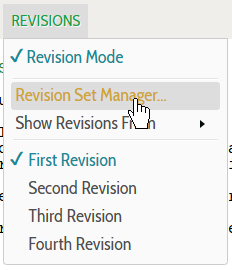
That will bring up a popup box where you can see and edit the revision sets, and see at a glance the number of additions and deletions that exist in each set:
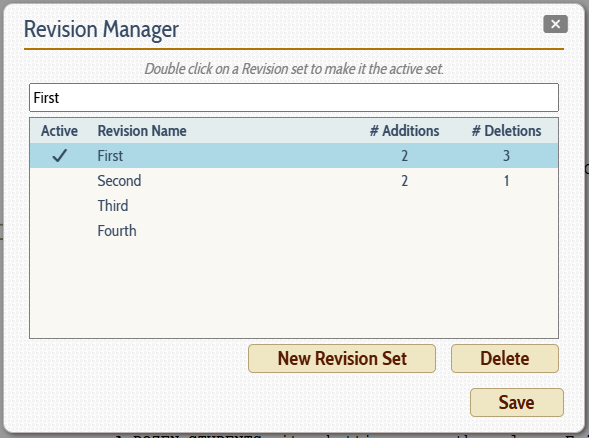
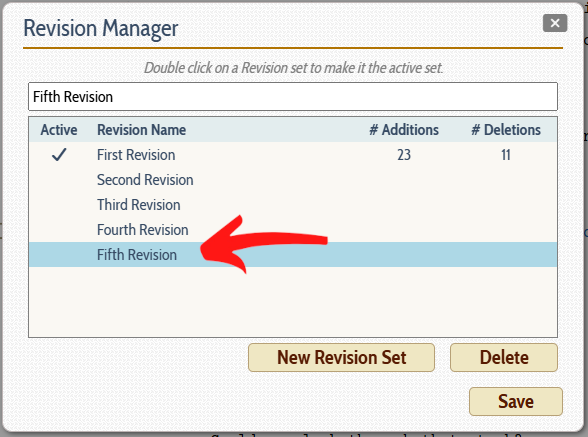
Note that you can change the name of any revision set by clicking on the line corresponding to the desired set and editing the name in the box at the top. And you can add a new revision set at any time by clicking on the New Revision Set button, which adds a revision set at the bottom of the list with a default numeric name (which you can change as we just mentioned):
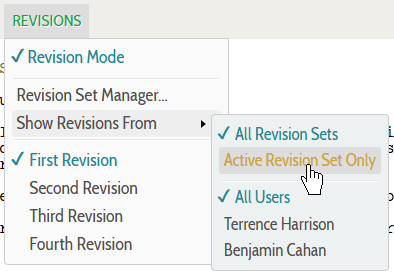
In terms of what is displayed on screen, you can choose whether to show changes from all revision sets or only the currently active set using the Show Revisions From menu popout:
In days gone by, these sets were given color names like Blue revisions or Pink revisions so changed pages could be printed on colored paper for everyone to identify intuitively. We did not use that notation as a default (who prints scripts out these days?), but you certainly could rename them to follow the old standards. In fact, we recommend you name the revision sets to be meaningful to you, whether the draft or date or purpose of the changes you are making.
The key is that you while you may well want to retain previous changes you made as the script continues to evolve and change, often you will only want to have the most recent changes shown in color on screen while retaining the ability to go back and see the ones from earlier.
One Active Set
Keep in mind that at any given time, only one revision set is active, and when you enable Revision Mode, all your changes will be tracked within that set. You can change the revision set easily from the Revisions menu set list or in the Revision Set manager popup.
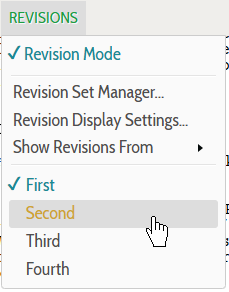
Select a different revision set from the menu and the script will be updated immediately to show that set's additions and deletions.
Loading screenplays…
Loading members…
Loading coverage…
Loading posts…
Education
Webinars and articles on the craft and business of screenwriting, from Script 360 and writers who know the work.
Loading webinars…
Loading articles…
Attachments/Media
The tabs in this section are currently hidden. Click on any of the tab titles above to open one.
| Title | Size | Uploaded | Actions |
|---|
No Attachments
No Images
No Videos
No Audio Files
Series / World
For a TV series, or a film and its sequels: keep the characters and locations that recur here, and every script you add to the folder can bring them in.
The tabs in this section are currently hidden. Click on any of the tab titles above to open one.
Scripts
Attachments/Media
The tabs in this section are currently hidden. Click on any of the tab titles above to open one.
| Title | Size | Uploaded | Actions |
|---|
No Attachments
No Images
No Videos
No Audio Files