
Activity Log
Loading content...
Added Text versus Deleted Text
We track it all so you can get an accurate picture of changes
We keep track of both added text and deleted text
When Revision Mode is turned on, all text you add as well as all text you delete are recorded and marked so you can get the whole picture on what has changed. While most screenwriting software does not retain the deleted text (merely noting the spot where text was removed), we get that you might very well want to see what got removed, especially if the changes were a result of edits from folks you invite to collaborate on a script.
Revised text displayed in color
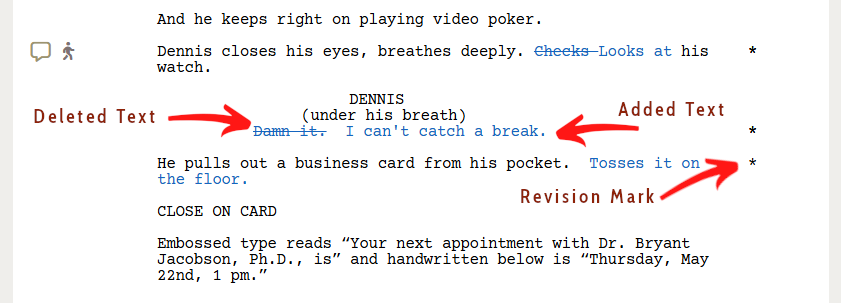
While you can suppress showing revision colors (from the icon bar revisions menu), in normal use revised text is shown in color in the script you are editing. Additions is shown normally, and deleted text is shown using the strike-through style to make it clear the text has been removed:
Supressing Colors, Background Colors, Revision Marks and Deleted Text
Script 360 gives you control over how Revisions are shown, and in the case of deleted text, whether it is shown on screen at all. Use the icon bar Revisions menu to view and change each of the display settings:
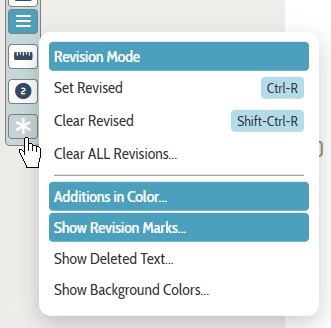
Note the bottom four items in the menu - those that are currently on are displayed with a dark background, those that are off show with no background. Select an option to toggle it on or off.
It is critical to understand that when you show deleted text, it is treated as a part of the script, and will affect how the script paginates (and thus the length of the script overall!). If you print your script with them showing, just know that fact and be sure to hide the deleted text prior to printing out (or saving as a PDF) for a copy of the script you will want others to read.
Background colors
In addition to making added and deleted text show in color, we added the option so also show a different background color (a lighter version of the text color) to make is really easy to find and identify the changes. As with the other display options, you can turn this on or off via the icon bar Revisions menu.
Revision Marks
Following industry standards, whereever there is either an addition or a deletion we show an asterisk (*) in the right margin, making it easy to know where a change was made, even if it was just a deletiion you are not showing. This can be disabled in the icon bar Revisions menu if you do not want them to be shown.
Loading screenplays…
Loading members…
Loading coverage…
Loading posts…
Education
Webinars and articles on the craft and business of screenwriting, from Script 360 and writers who know the work.
Loading webinars…
Loading articles…
Attachments/Media
The tabs in this section are currently hidden. Click on any of the tab titles above to open one.
| Title | Size | Uploaded | Actions |
|---|
No Attachments
No Images
No Videos
No Audio Files
Series / World
For a TV series, or a film and its sequels: keep the characters and locations that recur here, and every script you add to the folder can bring them in.
The tabs in this section are currently hidden. Click on any of the tab titles above to open one.
Scripts
Attachments/Media
The tabs in this section are currently hidden. Click on any of the tab titles above to open one.
| Title | Size | Uploaded | Actions |
|---|
No Attachments
No Images
No Videos
No Audio Files