
Activity Log
Loading content...
Scene Tags in the Script
See which scenes belong to which subplot, at a glance
Your tags, where you write
Tags are your own labels for scenes — a subplot, a theme, a set piece, anything you want to follow through the story — each with a name and a colour. You add them on a scene’s card (see Scene Cards from the Script), and they show up in two places in the editor.
In the script
A tagged scene has a small coloured square for each of its tags just after its scene heading. Hover over the squares to see the tags’ names.
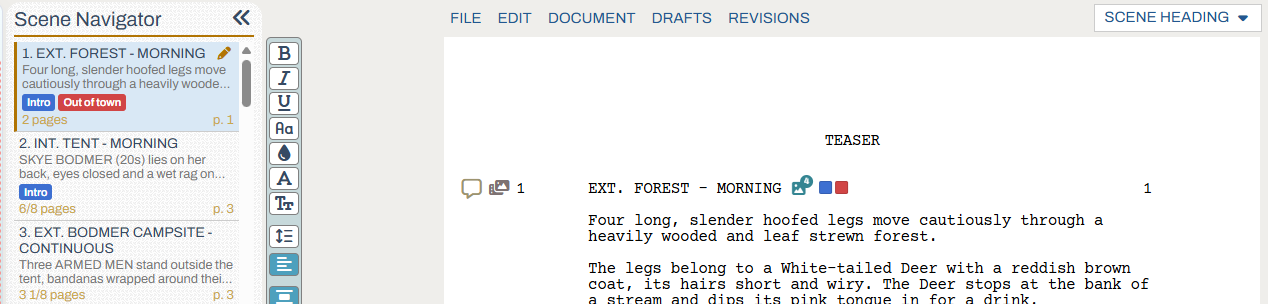
The squares sit beside your text, not in it, so they never change your formatting, your page count or your PDF.
In the Scene Navigator
Each scene in the Scene Navigator shows its tags as small coloured chips with their names, under the scene’s first line.
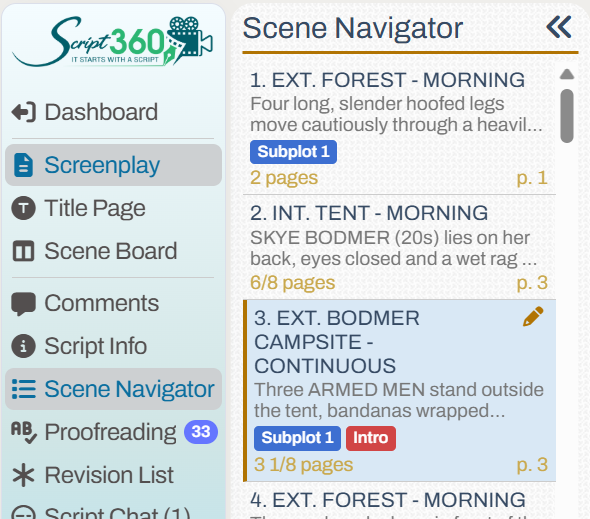
Changing a scene’s tags
Open the scene’s card — Scene Card in the scene heading’s element menu, or the pencil on the highlighted scene in the Scene Navigator — and add or remove tags there. The squares and chips update as soon as you save.
To rename a tag, change its colour, or filter the board to just the scenes with a tag, use the Tags menu on the Scene Board. The FAQ explains how: How do I tag scenes and filter the board?
Loading screenplays…
Loading members…
Loading coverage…
Loading posts…
Education
Webinars and articles on the craft and business of screenwriting, from Script 360 and writers who know the work.
Loading webinars…
Loading articles…
Attachments/Media
The tabs in this section are currently hidden. Click on any of the tab titles above to open one.
| Title | Size | Uploaded | Actions |
|---|
No Attachments
No Images
No Videos
No Audio Files
Series / World
For a TV series, or a film and its sequels: keep the characters and locations that recur here, and every script you add to the folder can bring them in.
The tabs in this section are currently hidden. Click on any of the tab titles above to open one.
Scripts
Attachments/Media
The tabs in this section are currently hidden. Click on any of the tab titles above to open one.
| Title | Size | Uploaded | Actions |
|---|
No Attachments
No Images
No Videos
No Audio Files