
Activity Log
Loading content...
Scene Cards from the Script
Edit a scene's card without going to the board
Every scene heading has a card
Each scene in your script is a card on its Scene Board, with a description of what happens, the characters in it, and any tags you have given it. You can open that card straight from the script.
Put your cursor in a scene heading and click the little element icon to the left of it. For a scene heading, the menu starts with two scene options, above the list of elements:
- Edit Scene # — set or change the scene’s number.
- Scene Card — open the scene’s card.
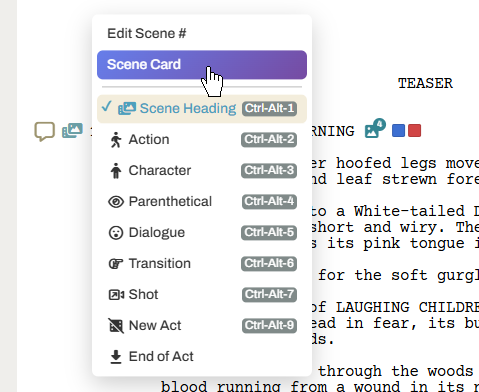
The card opens over your script, ready to edit:
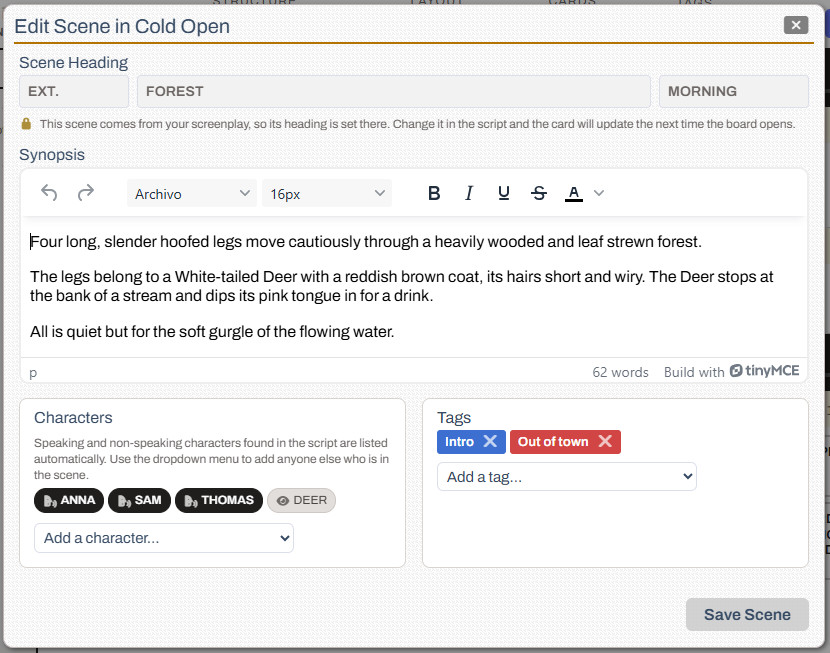
- The scene heading is shown but cannot be changed here — it comes from your script, so change it there.
- The synopsis is your own description of the scene.
- Characters who speak or appear in the scene are listed for you, and you can add anyone else.
- Tags are your own labels for subplots, themes or set pieces. Pick one, or choose New tag… to make one.
Press Save Scene and you are back in your script, with the card saved.
The first time you open a card, the Scene Board is loaded in the background, so it takes a moment. A scene you have only just typed gets its card at the same time.
The highlighted scene in the Scene Navigator has a small pencil at its top right. Clicking it opens the same card.
Loading screenplays…
Loading members…
Loading coverage…
Loading posts…
Education
Webinars and articles on the craft and business of screenwriting, from Script 360 and writers who know the work.
Loading webinars…
Loading articles…
Attachments/Media
The tabs in this section are currently hidden. Click on any of the tab titles above to open one.
| Title | Size | Uploaded | Actions |
|---|
No Attachments
No Images
No Videos
No Audio Files
Series / World
For a TV series, or a film and its sequels: keep the characters and locations that recur here, and every script you add to the folder can bring them in.
The tabs in this section are currently hidden. Click on any of the tab titles above to open one.
Scripts
Attachments/Media
The tabs in this section are currently hidden. Click on any of the tab titles above to open one.
| Title | Size | Uploaded | Actions |
|---|
No Attachments
No Images
No Videos
No Audio Files